
How to Use Qalzy: Step-by-Step Guide
How to Use Qalzy: Step by Step
Get Started with Qalzy
Getting started with a new nutrition app shouldn’t require guesswork. If you’re new to tracking, read our Calorie Counting for Beginners guide first to learn how calories work, estimate your daily needs, and track food accurately. This step-by-step guide walks you through everything you need to know to start using Qalzy - from setting your goals and viewing your personalized calorie and macronutrient targets to logging meals, creating recipes, tracking water and exercise, and exploring your nutrition insights.
You’ll also learn how to use Qalzy’s AI-powered tools to scan meals and nutrition labels, search the food database, connect health apps and fitness devices, and share your food data with a nutritionist or healthcare professional.
Whether you’re using Qalzy to lose weight, gain muscle, improve your nutrition, or simply understand your eating habits better, this guide will help you set up the app and make the most of its features.
How to Set your Goals and View Your Calorie Targets
1. Complete the questionnaire and get your personalized plan
When you create your Qalzy account, you’ll complete a short questionnaire about your goals, body measurements, activity level, and nutrition preferences. Qalzy uses your answers to create a personalized plan with daily calorie and nutrient targets.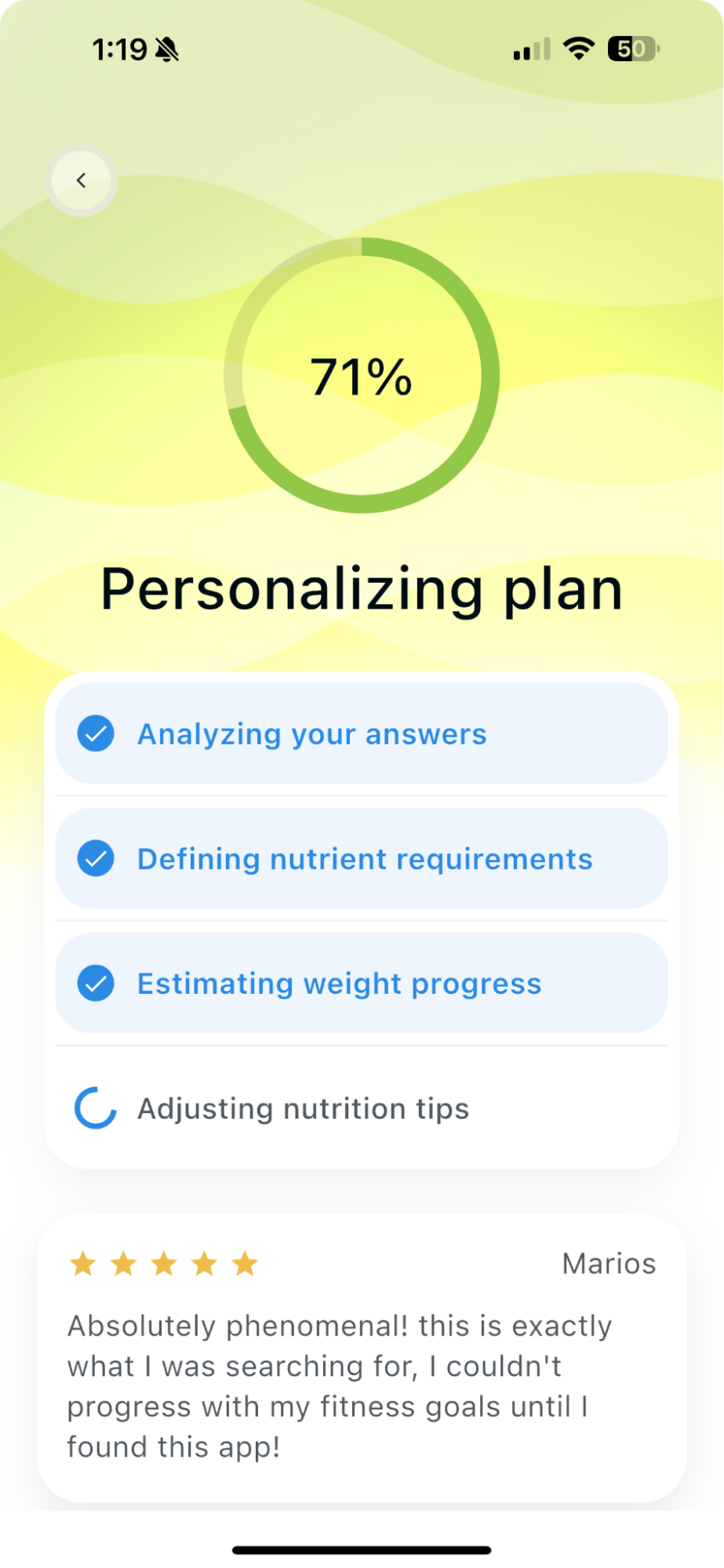
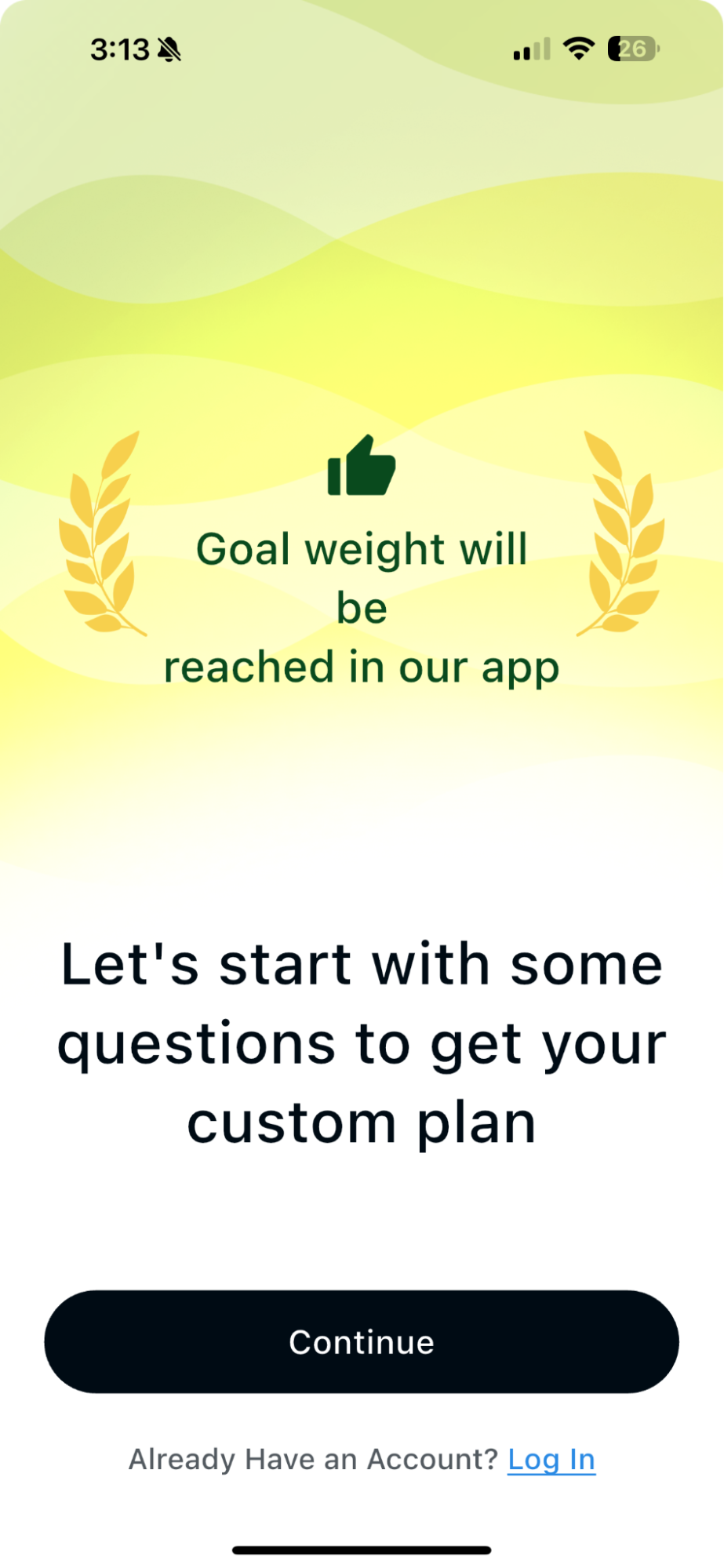
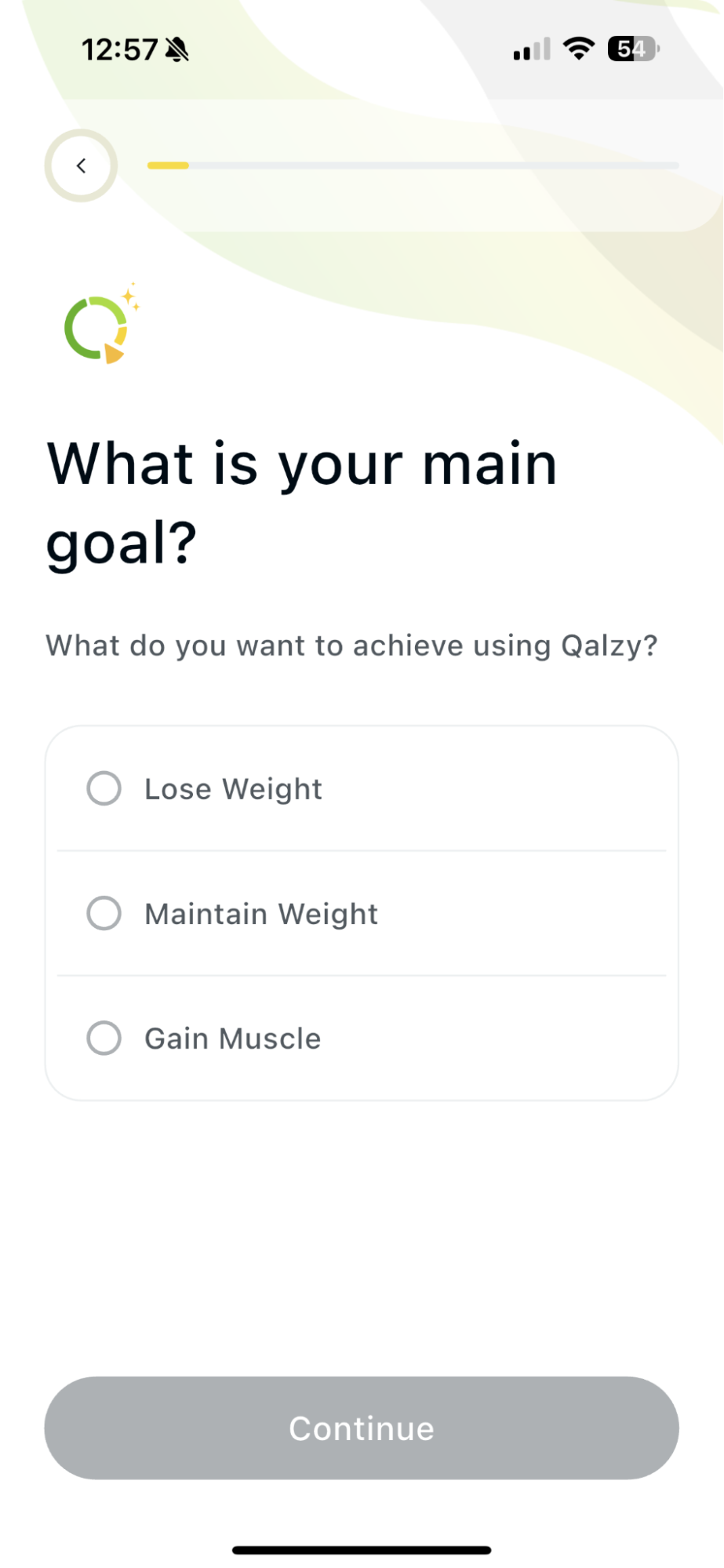
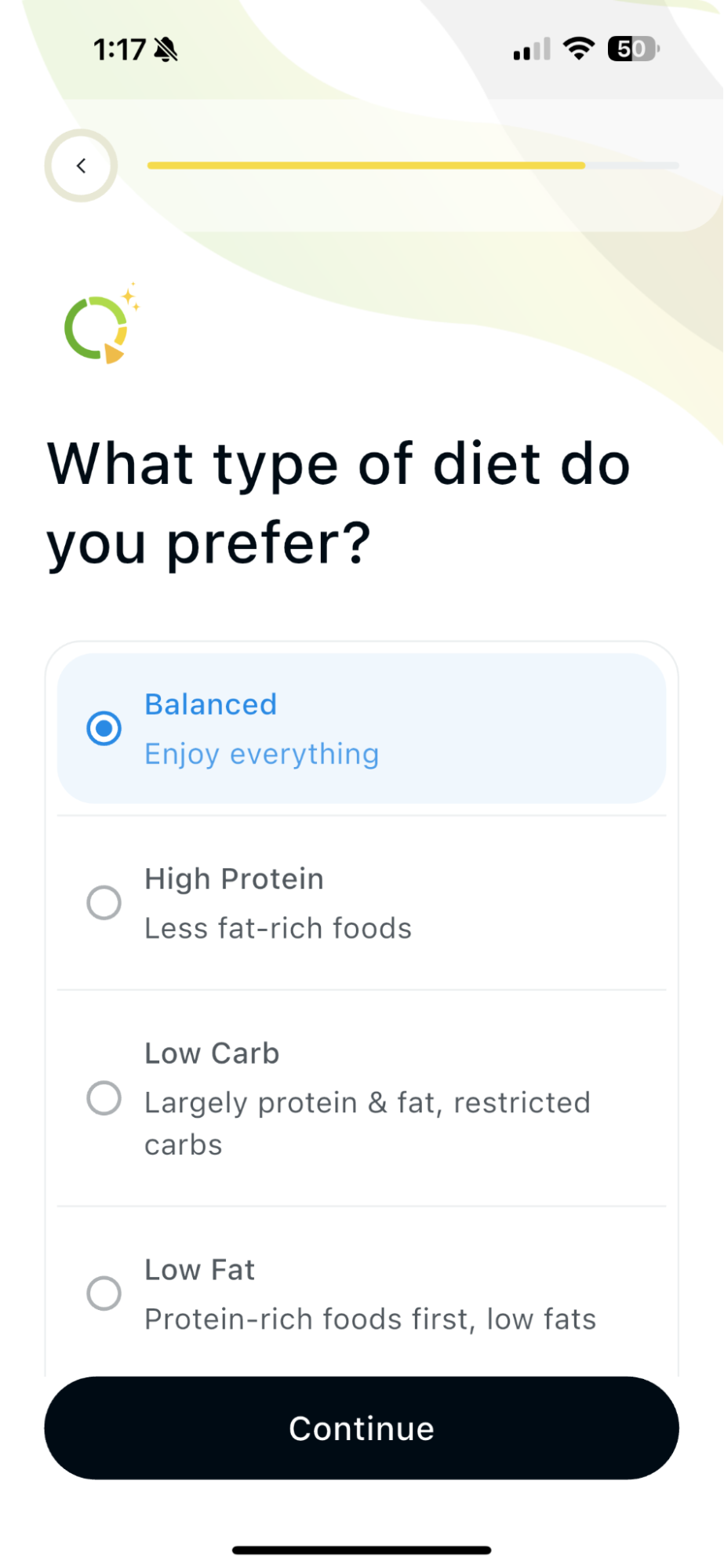
Choose your main goal - losing weight, maintaining your weight, or gaining muscle - and answer a few questions about your:
- Current and target weight
- Activity level
- Eating habits
- Nutrition preferences
- Health and fitness goals
Once you complete the questionnaire, Qalzy analyzes your answers and creates a personalized plan with daily calorie and nutrient targets.
2. Update your goals at any time
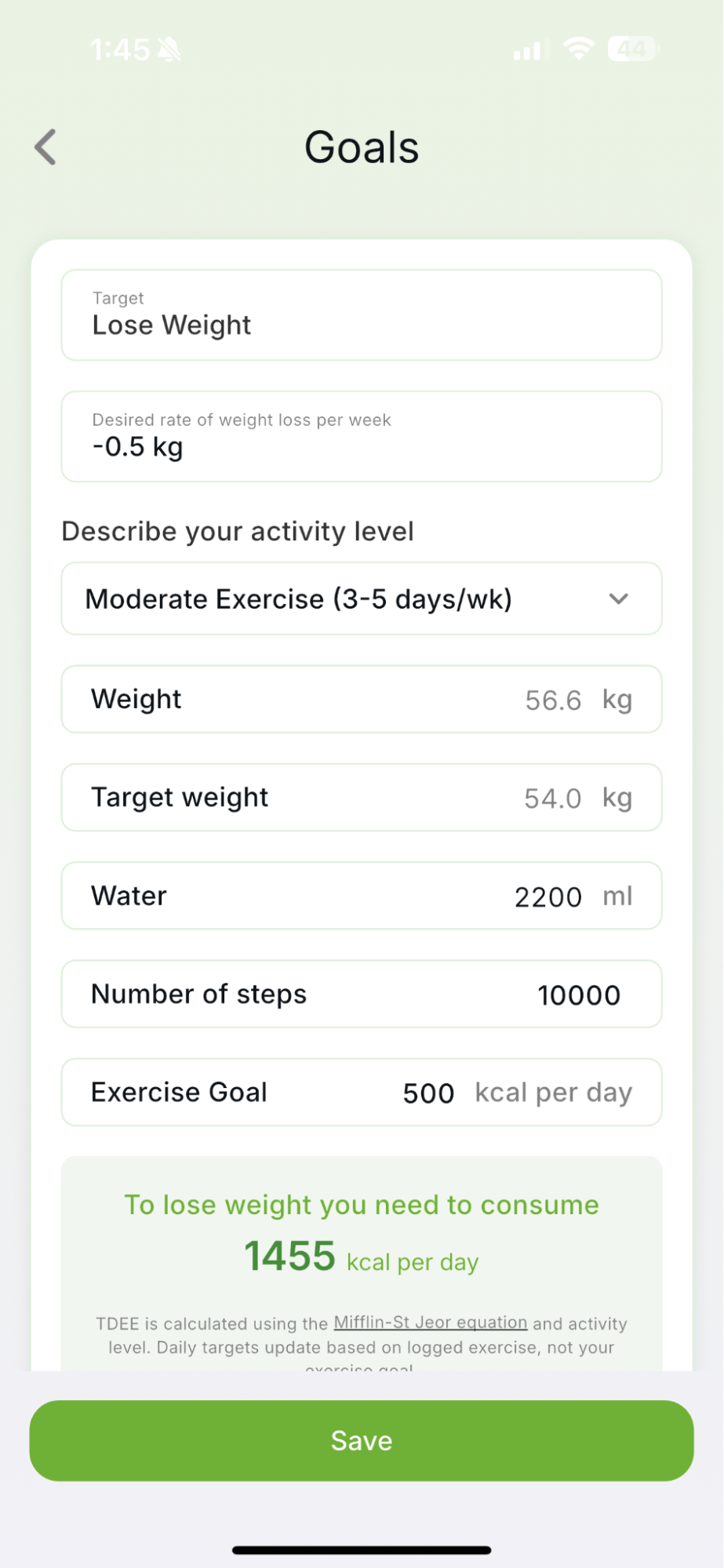
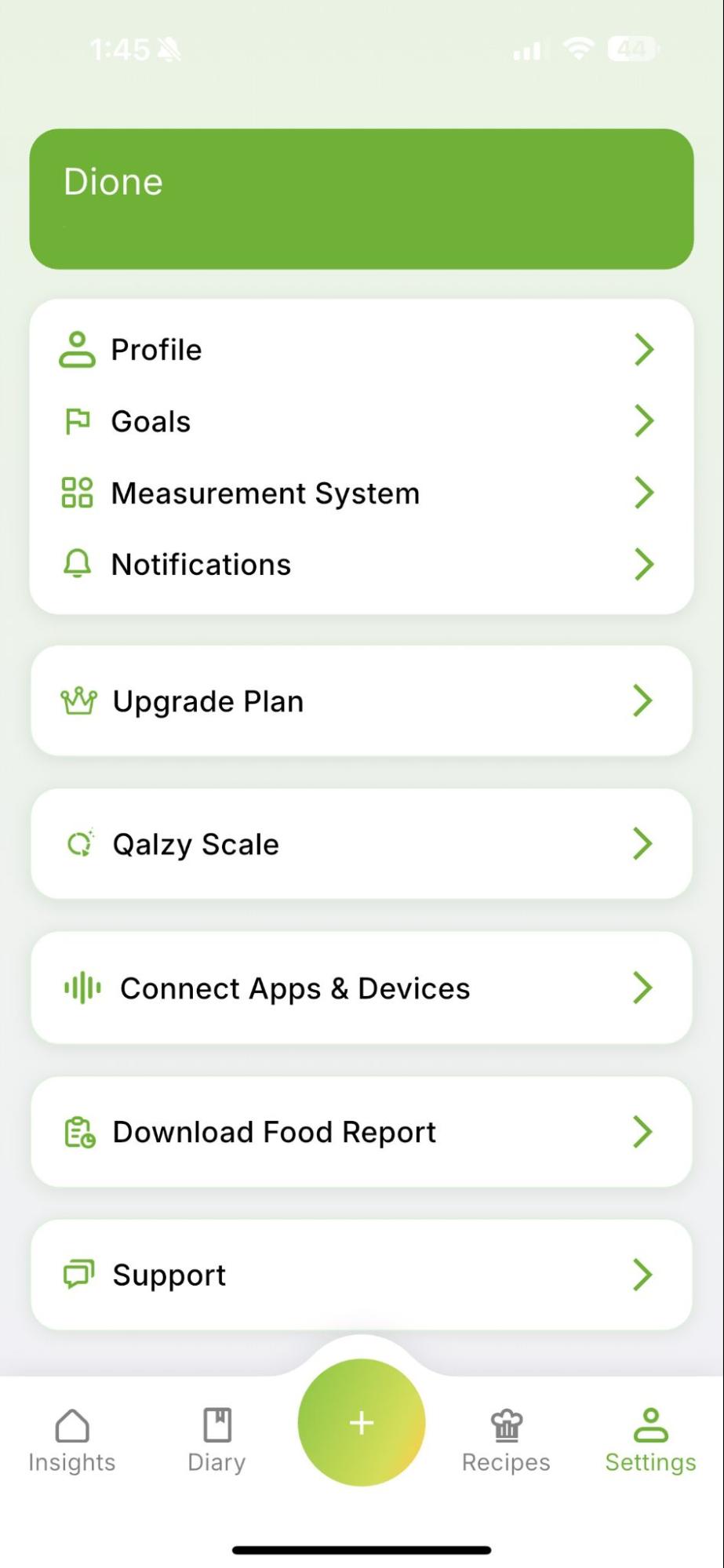
You can change your goals whenever your needs or routine change. Open Settings, select Goals, and update your goal, activity level, weight, target weight, water, steps, or exercise target. Tap Save when you’re finished.
3. Update your diet type at any time
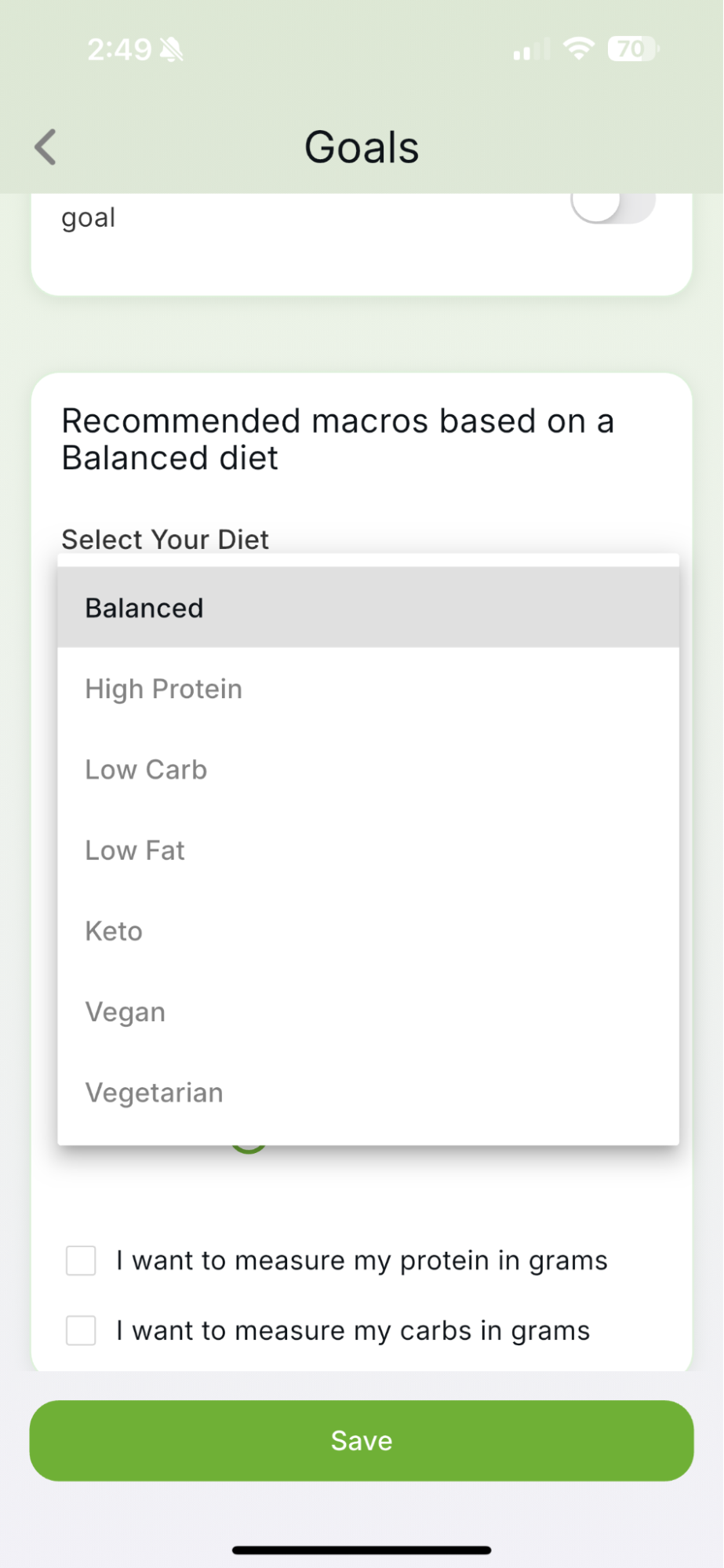
From Settings, open Goals and choose your preferred diet type, such as:
- Balanced
- High Protein
- Low Carb
- Low Fat
- Keto
- Vegan
- Vegetarian
Qalzy uses your selection to recommend your macronutrient targets. You can also set your protein and carbohydrate targets manually in grams. Tap Save to update your plan.
4. Check your daily calorie target
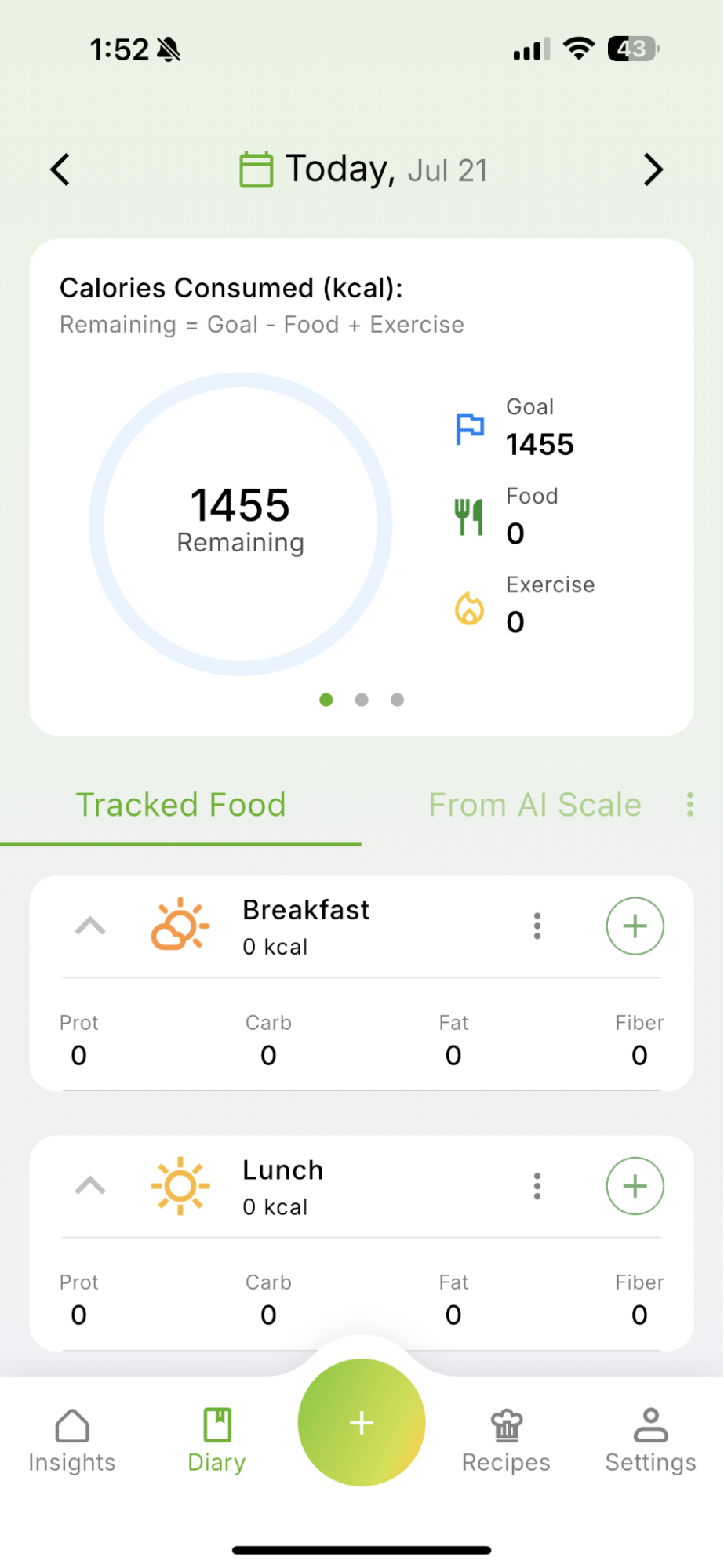
Open the Diary to see your daily calorie goal, the calories you’ve consumed, calories recorded through exercise, and how many you have remaining.
Your remaining calories are calculated as:
Remaining calories = Goal − Food + Exercise These figures update throughout the day as you log meals and activity.
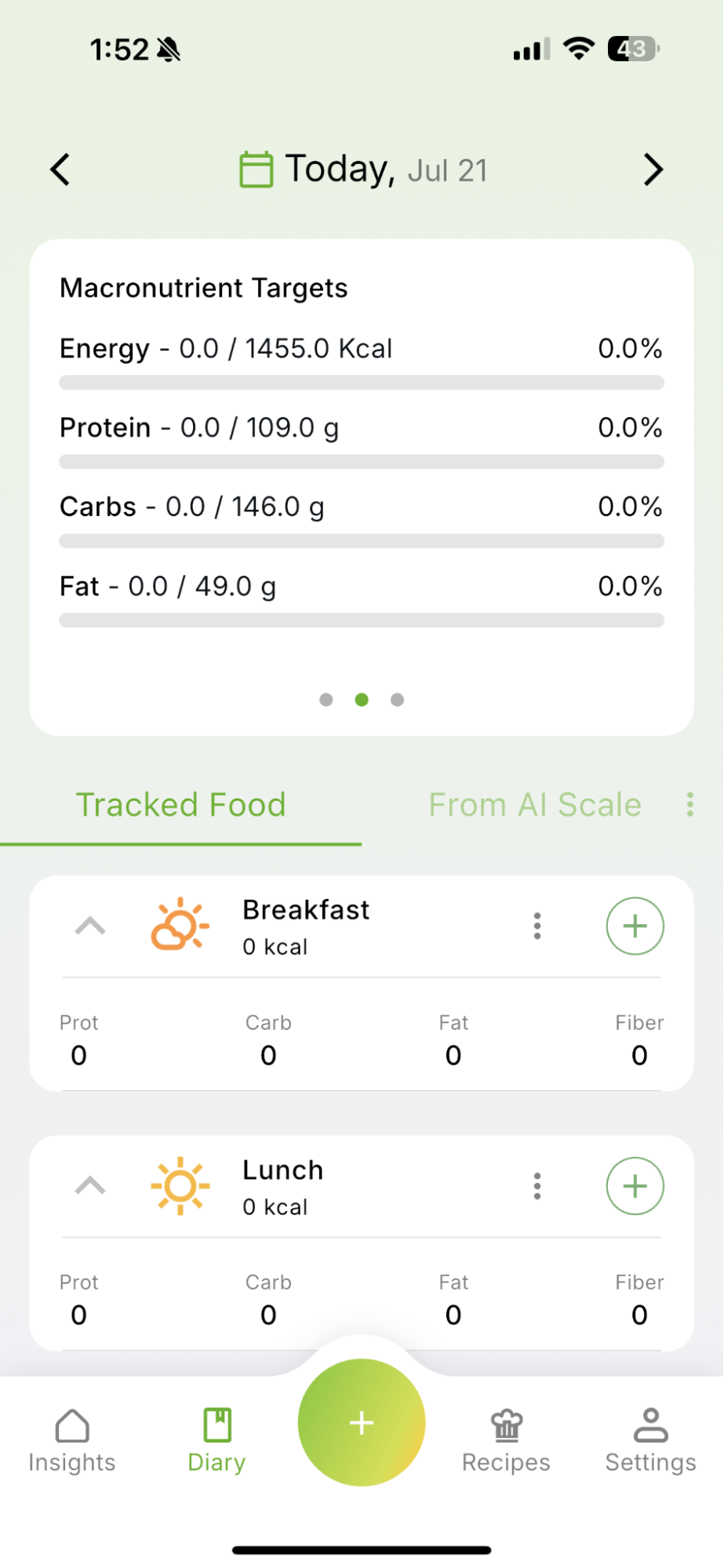
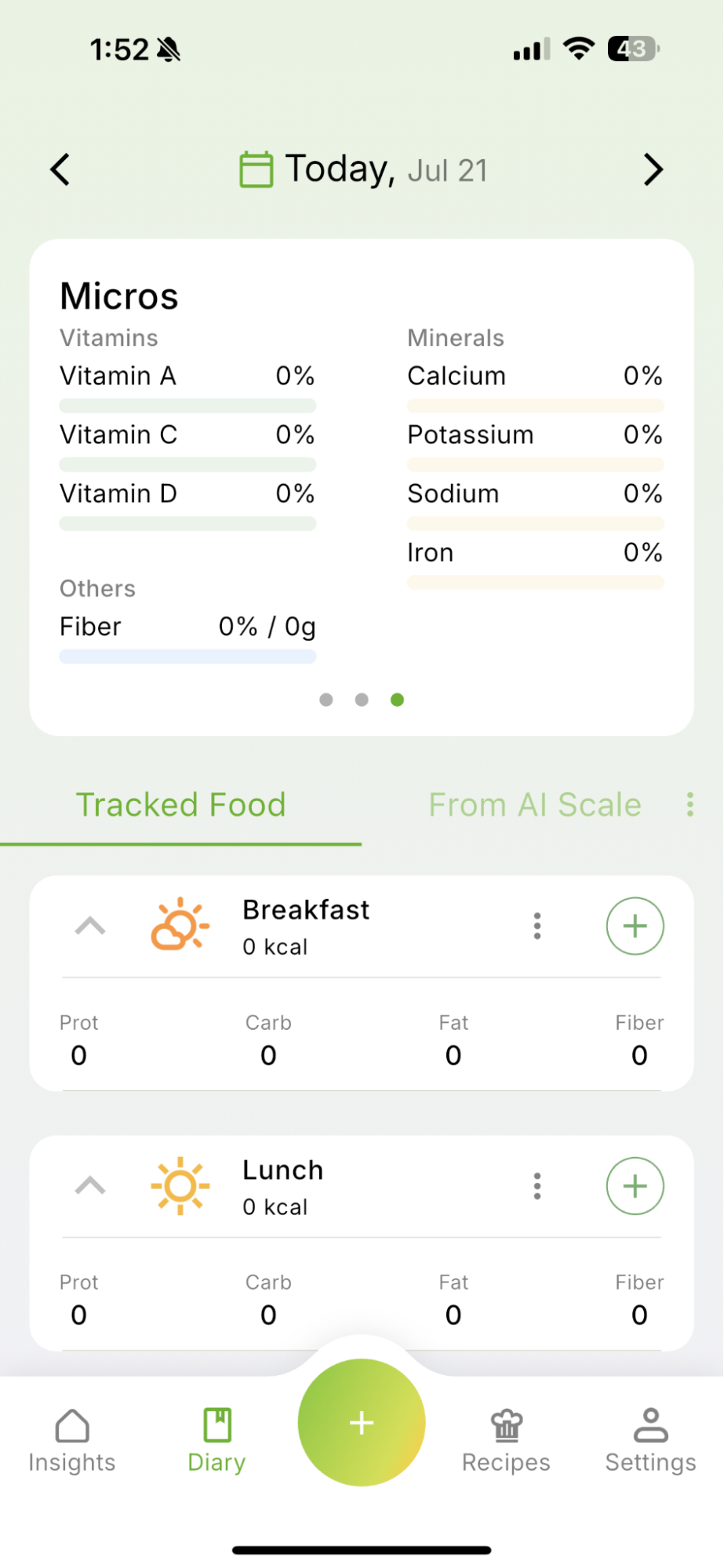
5. View your micros and macronutrient targets
Swipe across the summary card in your Diary to see your personalized daily targets for calories, protein, carbohydrates, and fat.
The progress bars update as you log your food, helping you see how much you’ve consumed and how close you are to each target.
How to record your first food
Qalzy gives you several ways to record food, whether you want to scan a meal, scan a packaged product, search for an ingredient, or enter the nutrition information yourself.
1. Choose where to add your food
Open your Diary and either:
Tap the large + button at the bottom of the screen, or
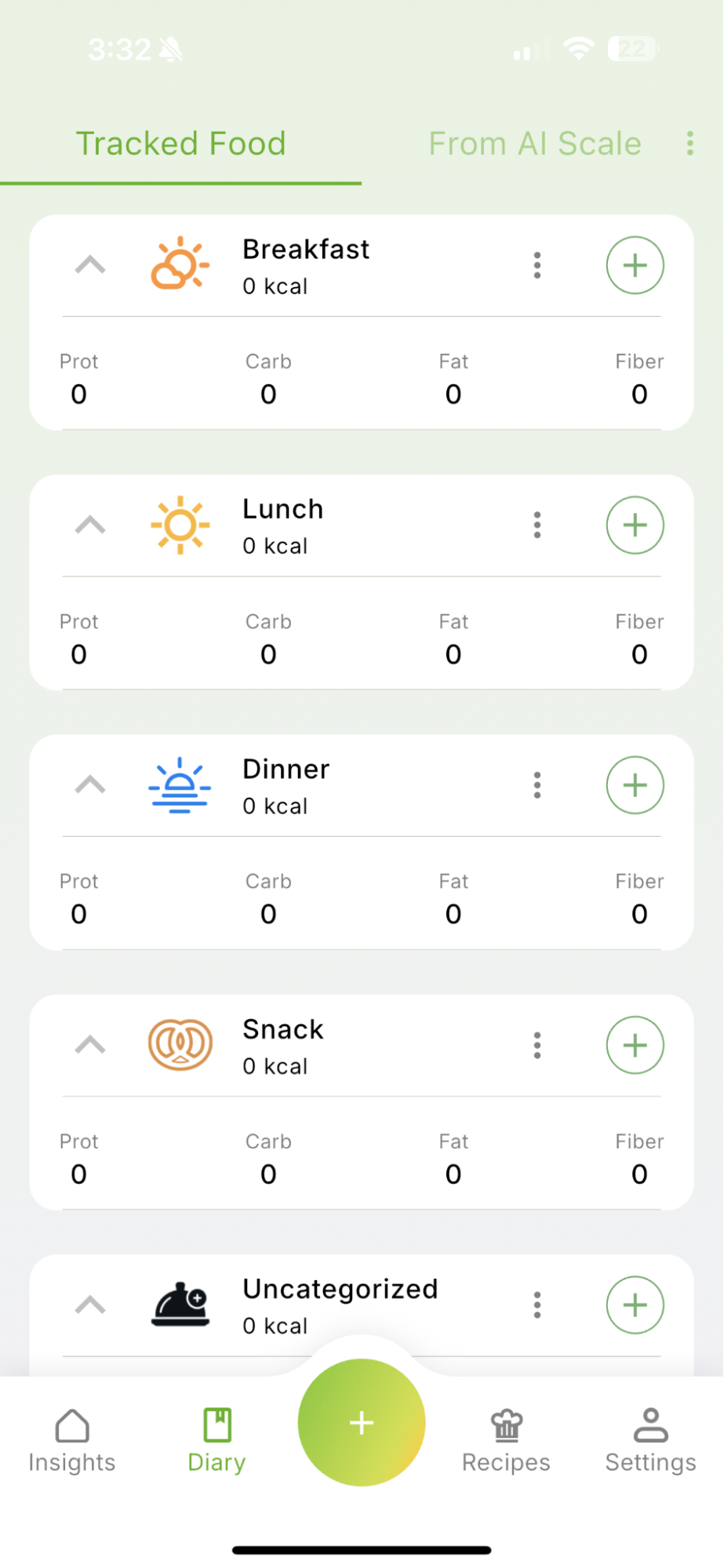
Tap the smaller + beside Breakfast, Lunch, Dinner, Snack, or Uncategorized
Selecting a specific meal automatically places the food in that section of your diary.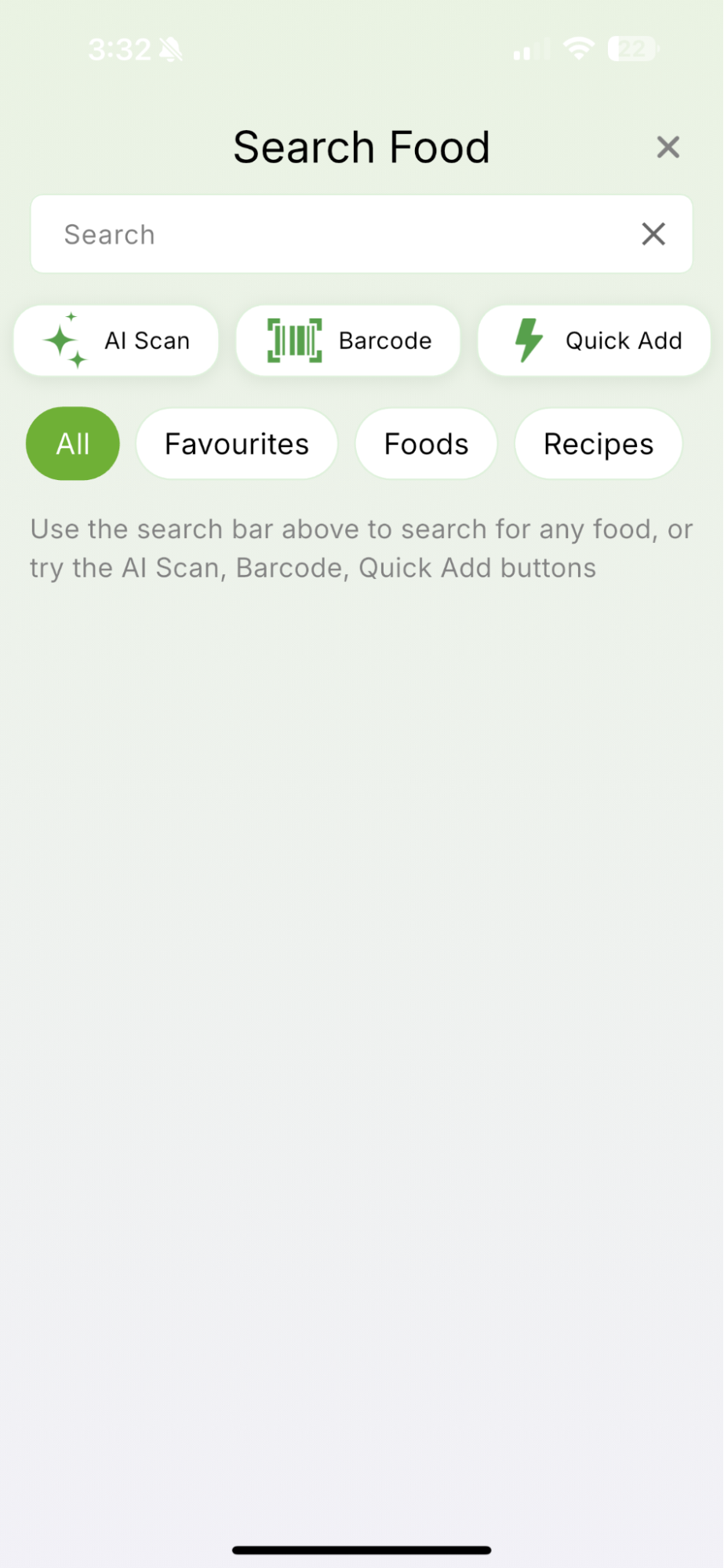
2. Choose how you want to record it
You can add your food in several ways: Search: Find a food, ingredient, or meal in Qalzy’s database.
AI Scan: Take a photo of your plate or a nutritional label and let Qalzy identify the food.
Barcode: Scan the barcode of a packaged product.
Quick Add: Enter the calories and macronutrients yourself.
Favourites, Foods, or Recipes: Select something you have already saved.
How to Search for a Food, Meal, or Ingredient
Qalzy’s food database to find and record individual foods, ingredients, or meals.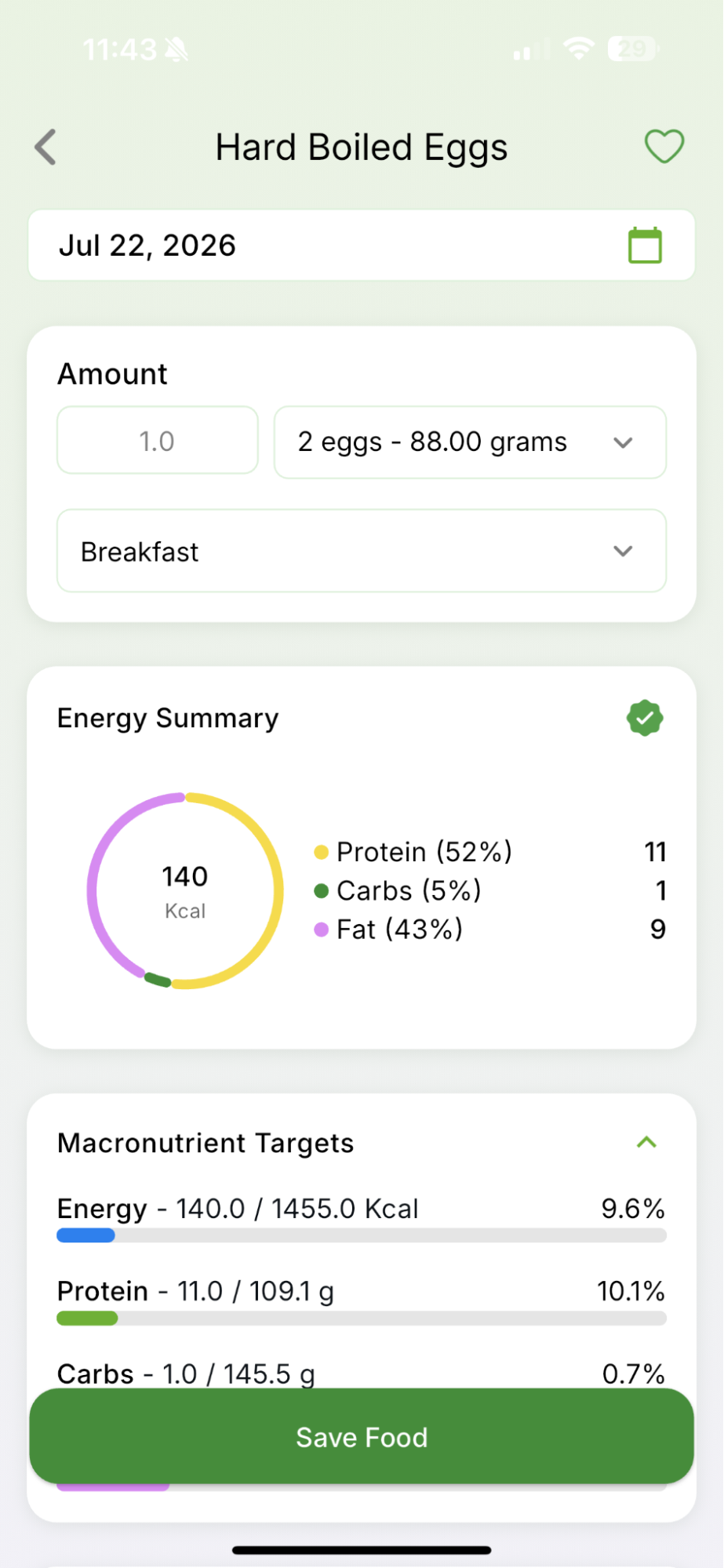
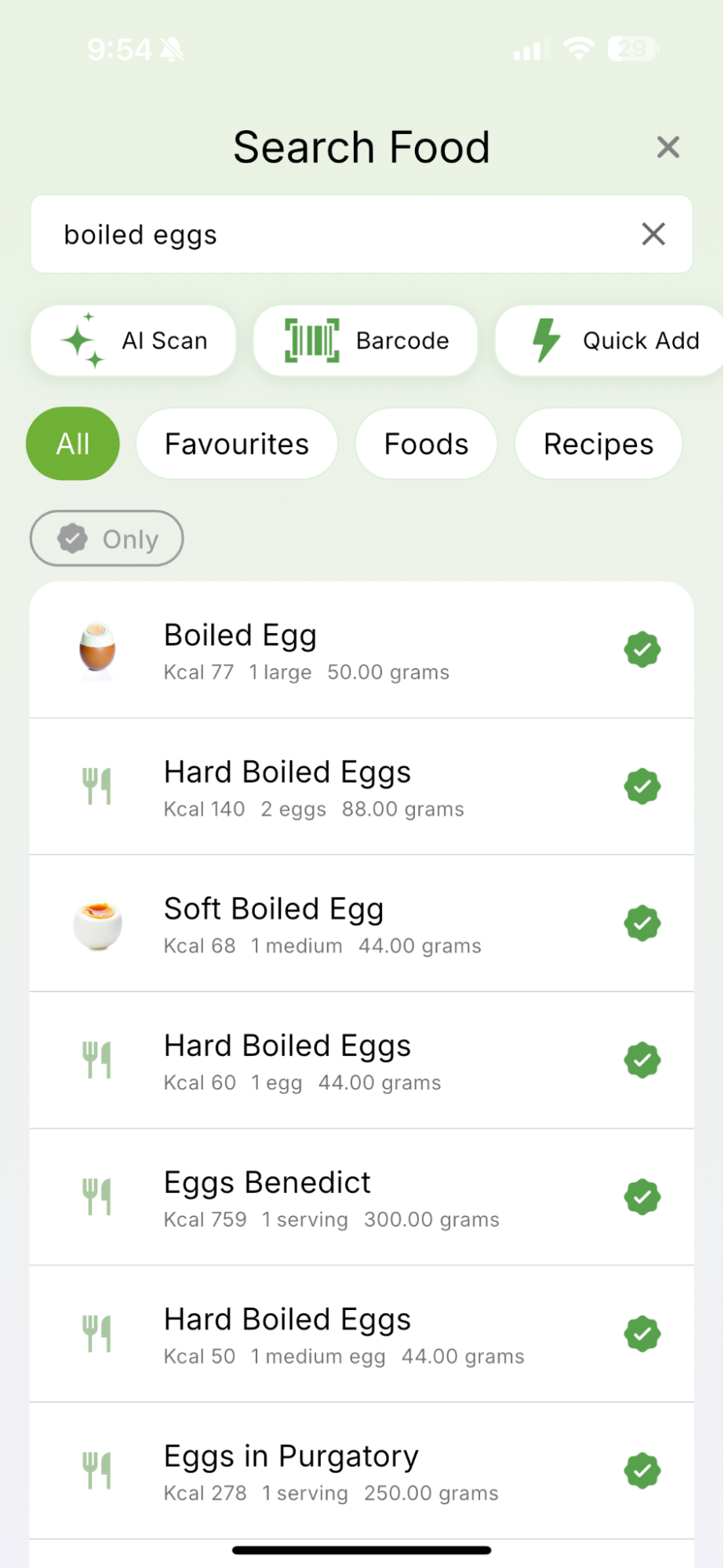
Step 1: Search for the food From the Add Food screen, tap the search bar and enter the name of the food you want to record.
Step 2: Choose the closest match Review the search results and select the option that best matches your food. Each result displays useful information such as serving size, weight, and calories.
Step 3: Review the food details Check the nutritional information and adjust the serving size or quantity to match the amount you ate.
Step 4: Save the Food Tap Save Food. If you haven’t selected breakfast, lunch, dinner, or snack, Qalzy will automatically categorize it based on the time of day. Your daily calorie and nutrient totals will update automatically.
How to AI Scan a Meal, Nutrition Label, or Barcode
Qalzy lets you record food by scanning an entire meal, a packaged food’s nutrition label, or its barcode, using your phone’s camera.
Choose a scanning method
From the Add Food screen, select:
- AI Scan to photograph a meal or nutrition label.
- Barcode to scan the barcode on a packaged product.
Scan an entire meal
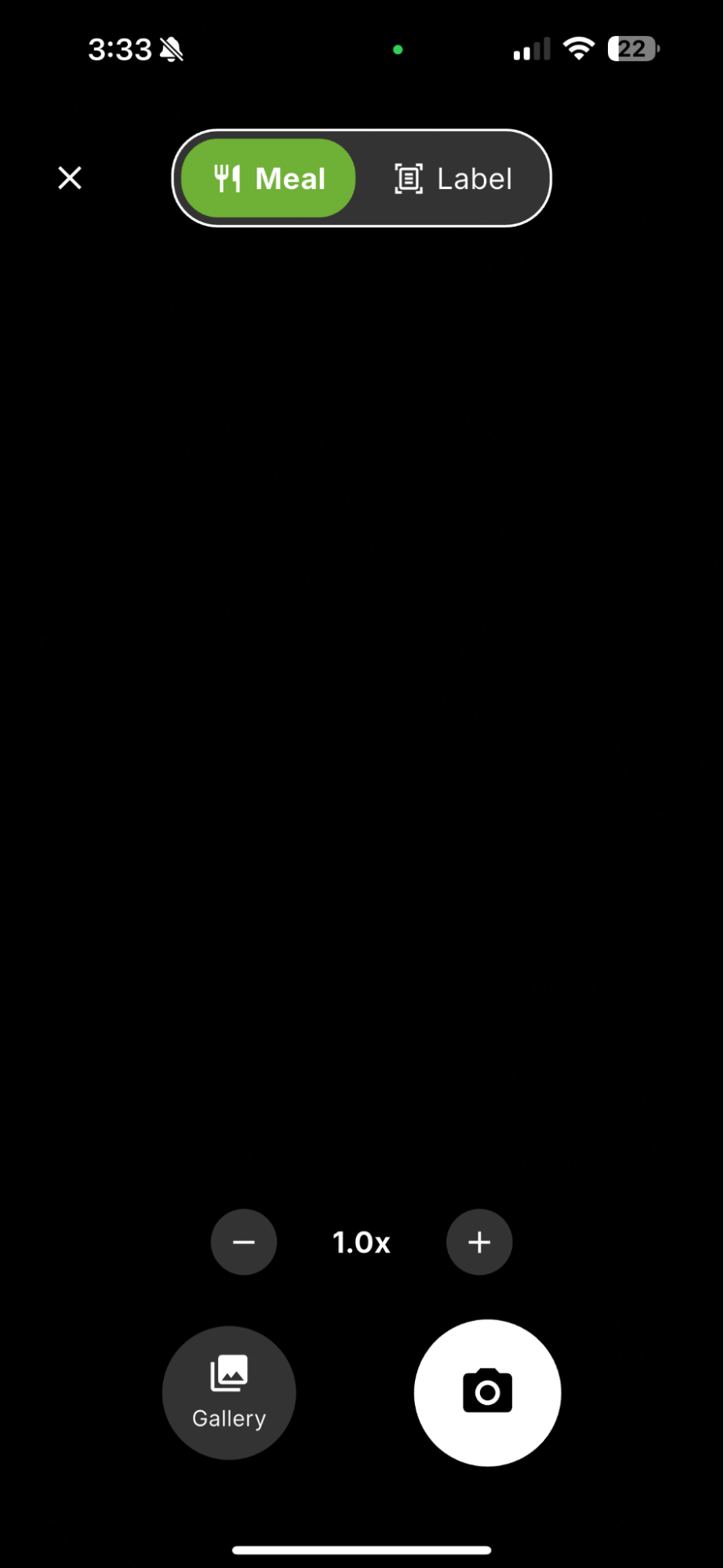
After selecting AI Scan, choose Meal at the top of the camera screen. Position the entire plate inside the frame and take a clear photo.
You can also select Gallery to upload an existing photo of your meal. Qalzy will identify the foods and generate an estimate of the meal’s calories and nutritional information
Scan a nutrition label
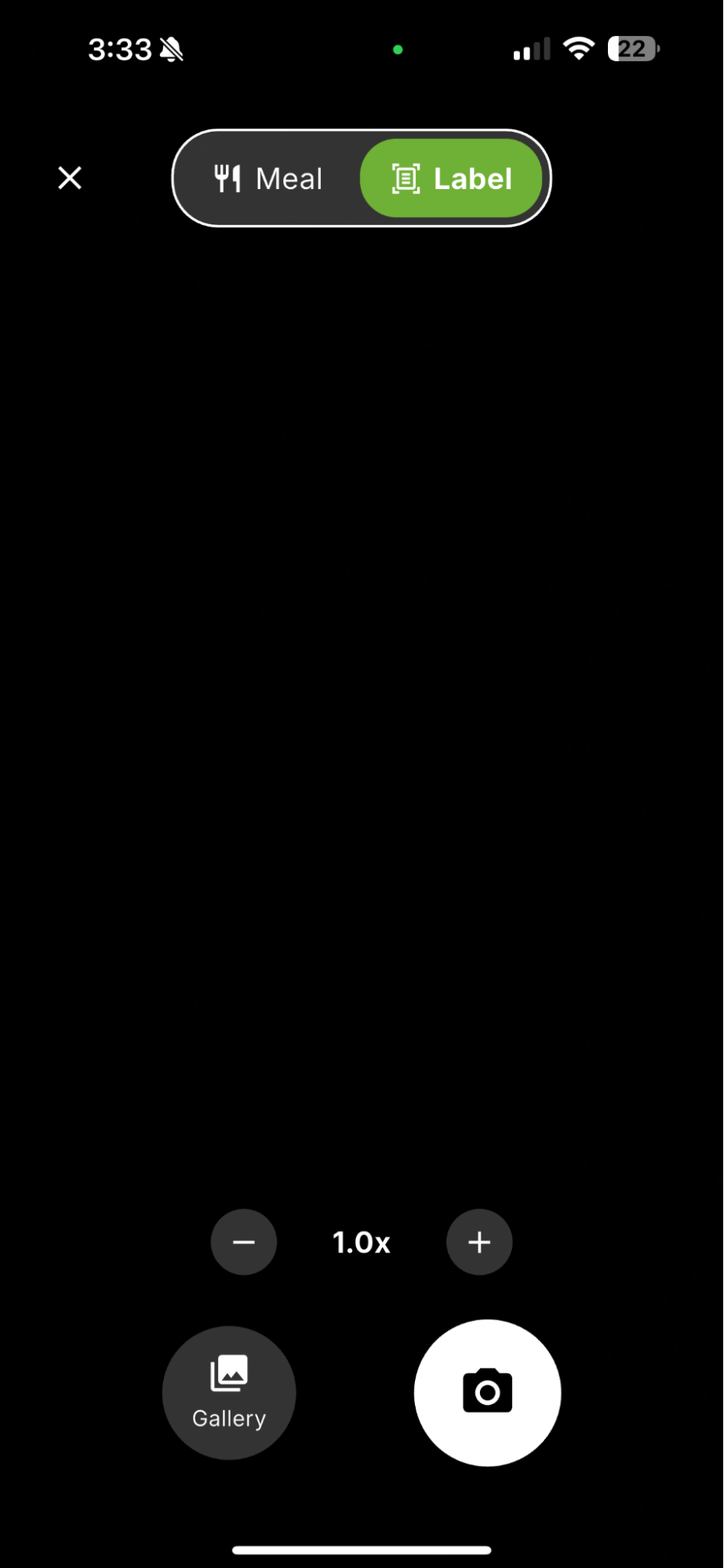
To add a packaged food using its nutritional information, select Label at the top of the AI Scan camera.
Make sure the complete label is visible and the text is clear, then take a photo or upload one from your Gallery. Qalzy will read the label and extract the calories, protein, carbohydrates, fat, and other available nutrition information.
Scan a barcode
From the Add Food screen, tap Barcode and position the product’s barcode inside the camera frame. Qalzy will search for the product and retrieve its available nutritional information.

How to Use Quick Add
Quick Add lets you record a food or meal manually when you already know its calories and nutritional information.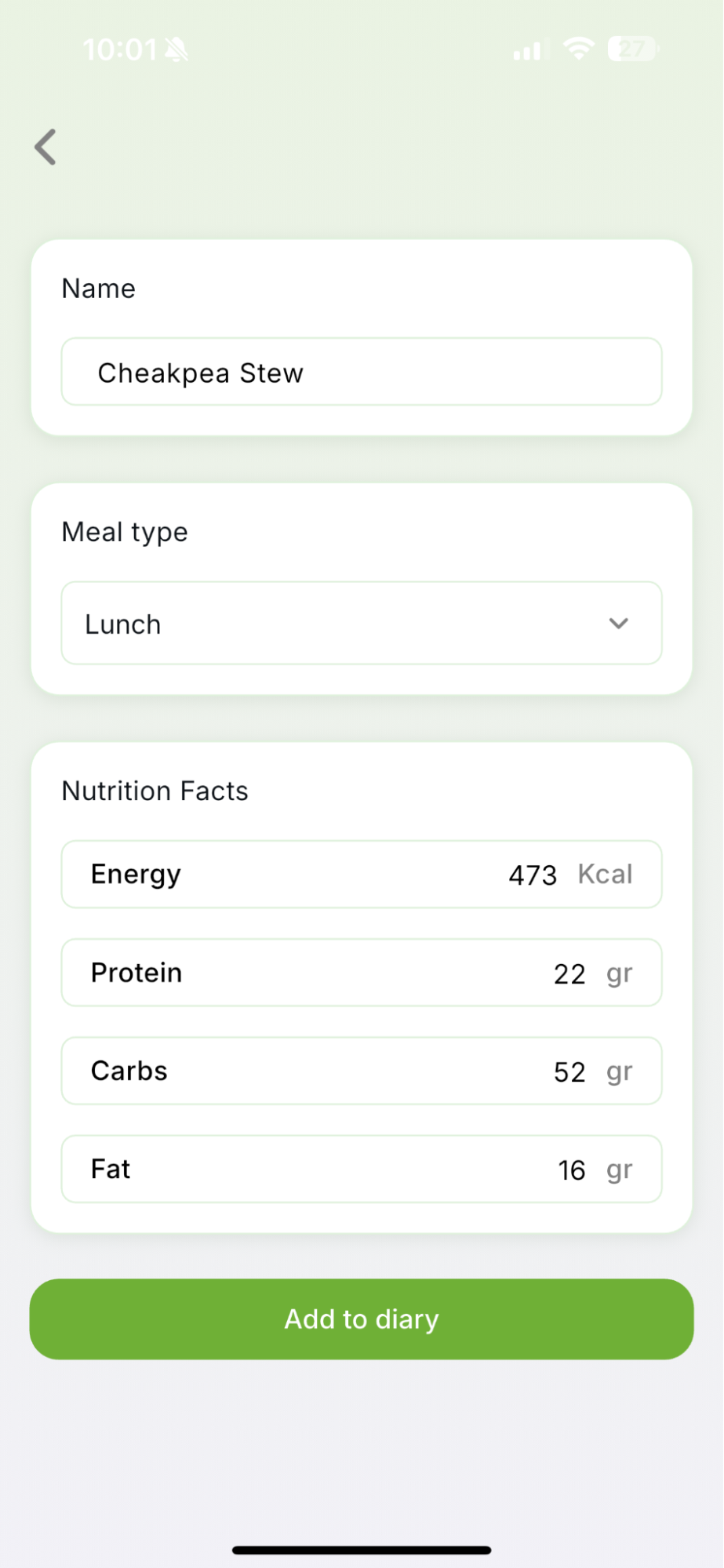
Step 1: Open Quick Add From the Add Food screen, tap Quick Add.
Step 2: Enter the food details Add a name for the food or meal, then select where you want it to appear in your Diary:
- Breakfast
- Lunch
- Dinner
- Snack
Step 3: Add the nutrition facts Enter the available nutritional information:
- Energy in calories
- Protein
- Carbohydrates
- Fat
You can enter only the information you know, making Quick Add useful when you have the nutrition facts but cannot find or scan the food.
Step 4: Add the food to your Diary TapAdd to Dairy to save the food. If you haven’t selected breakfast, lunch, dinner, or snack, Qalzy will automatically categorize it based on the time of day. Your daily calorie and nutrient totals will update automatically.
How to Explore Recipes and Add New Foods and Recipes
In Qalzy’s Recipes section, you can discover new recipes, access recipes and foods you have created, and add a custom food when it isn’t available in the database.
1. How to Explore and Manage Recipes
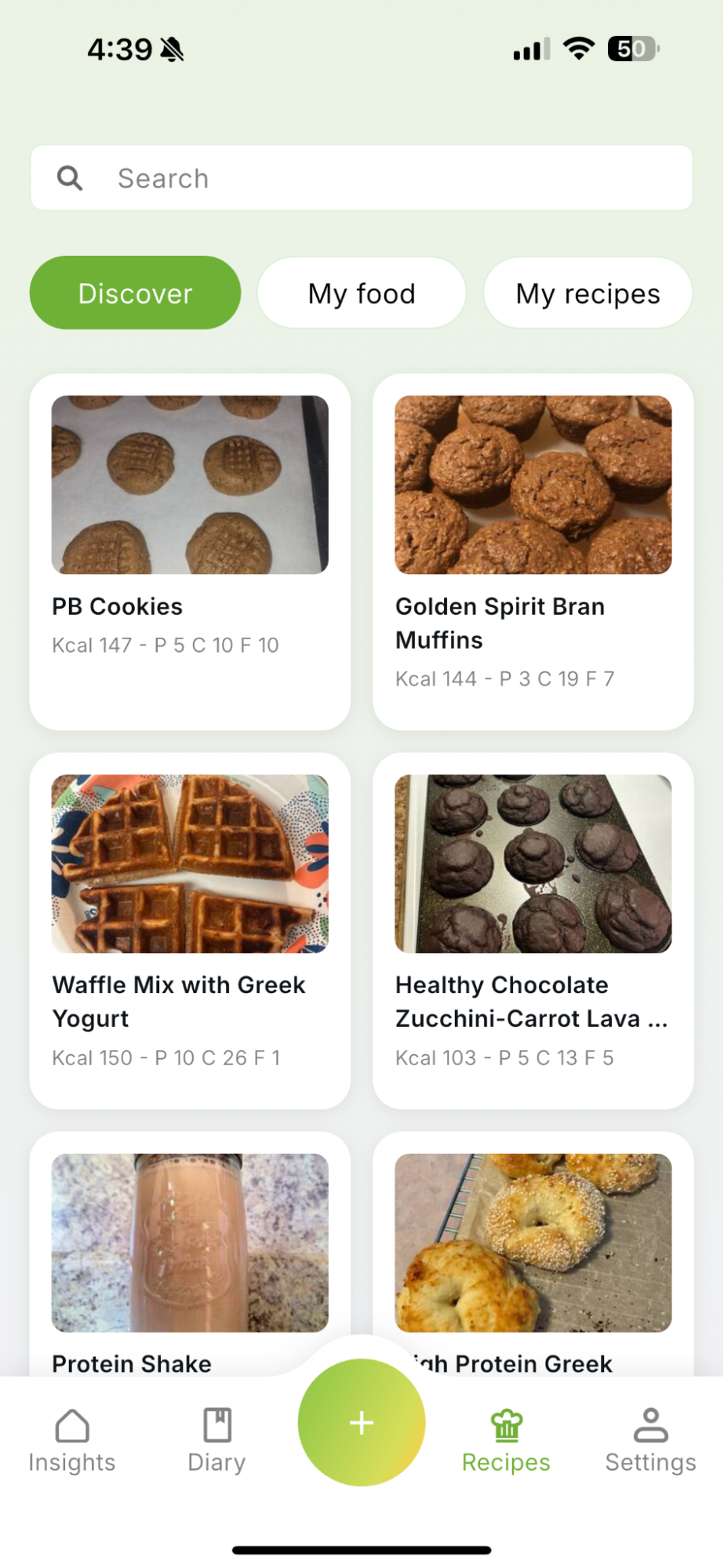
Discover New Recipes
Open Discover to explore recipes available in Qalzy. Select a recipe to view its ingredients, preparation instructions, serving information, and nutritional values.
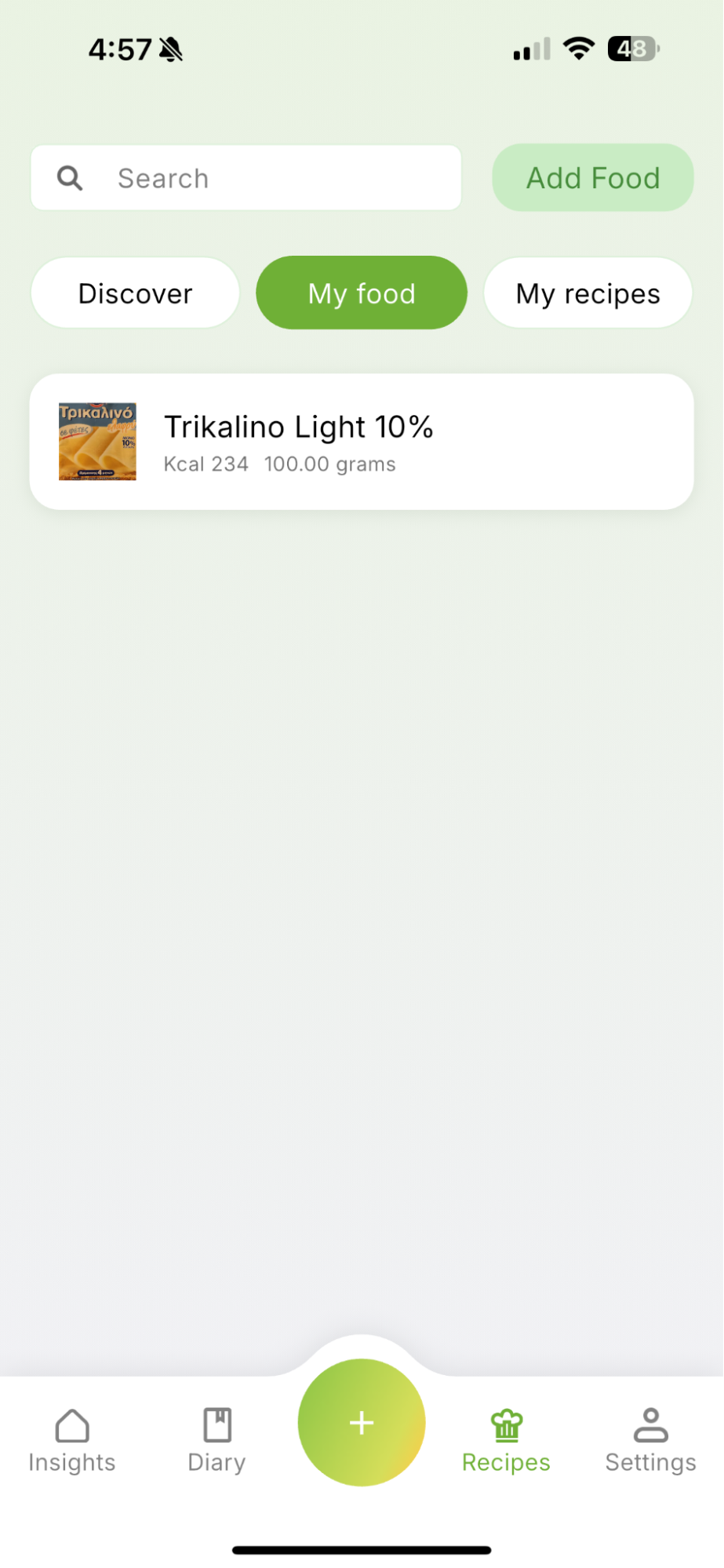
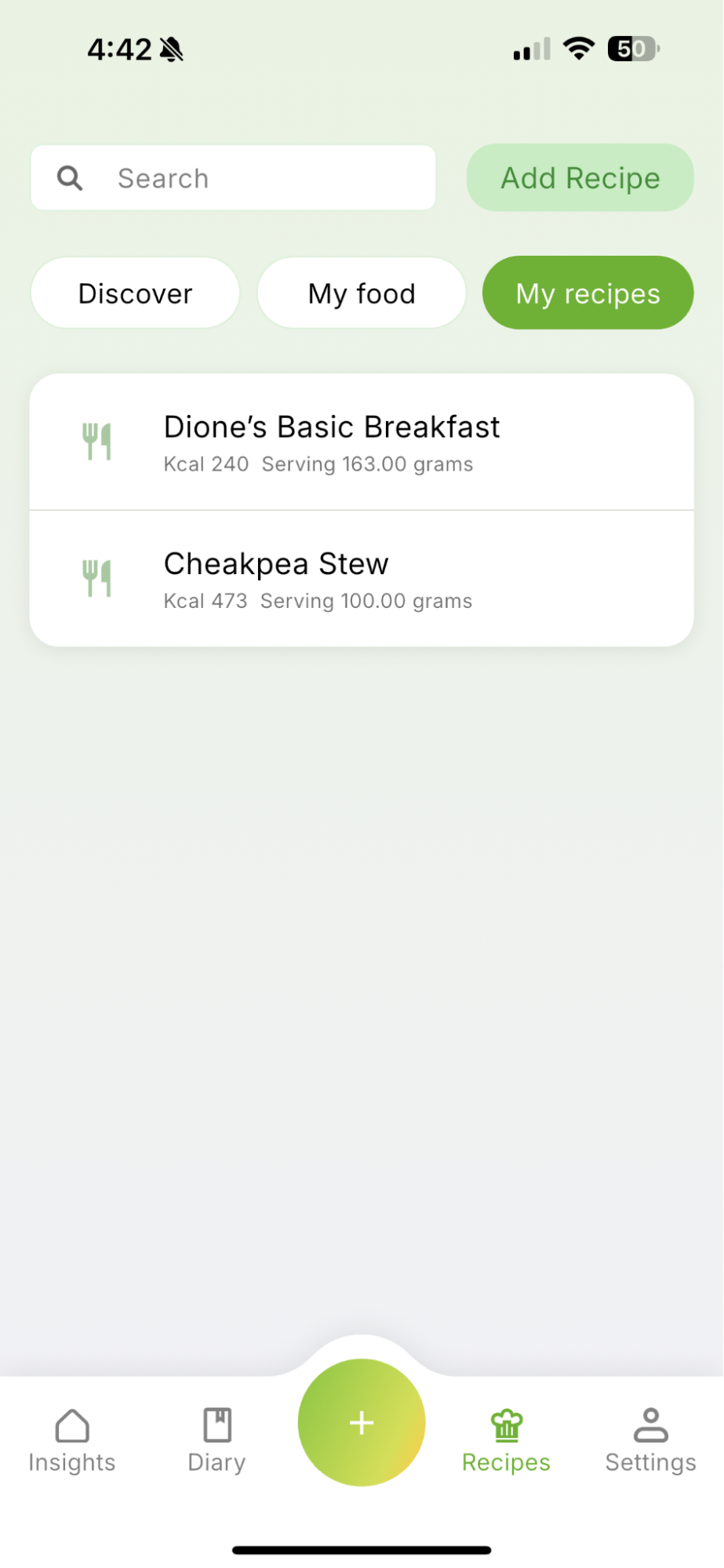
View Your Foods and Recipes
Use the available tabs to access:
- My Food: Custom foods you have created.
- My Recipes: Recipes you have created or saved.
This makes it easier to find and reuse foods and recipes without entering their information again.
2. How to Add a Food That Isn’t in the Database
If you cannot find a food using Qalzy’s search or barcode scanner, you can create it as a custom food and save it for future use.
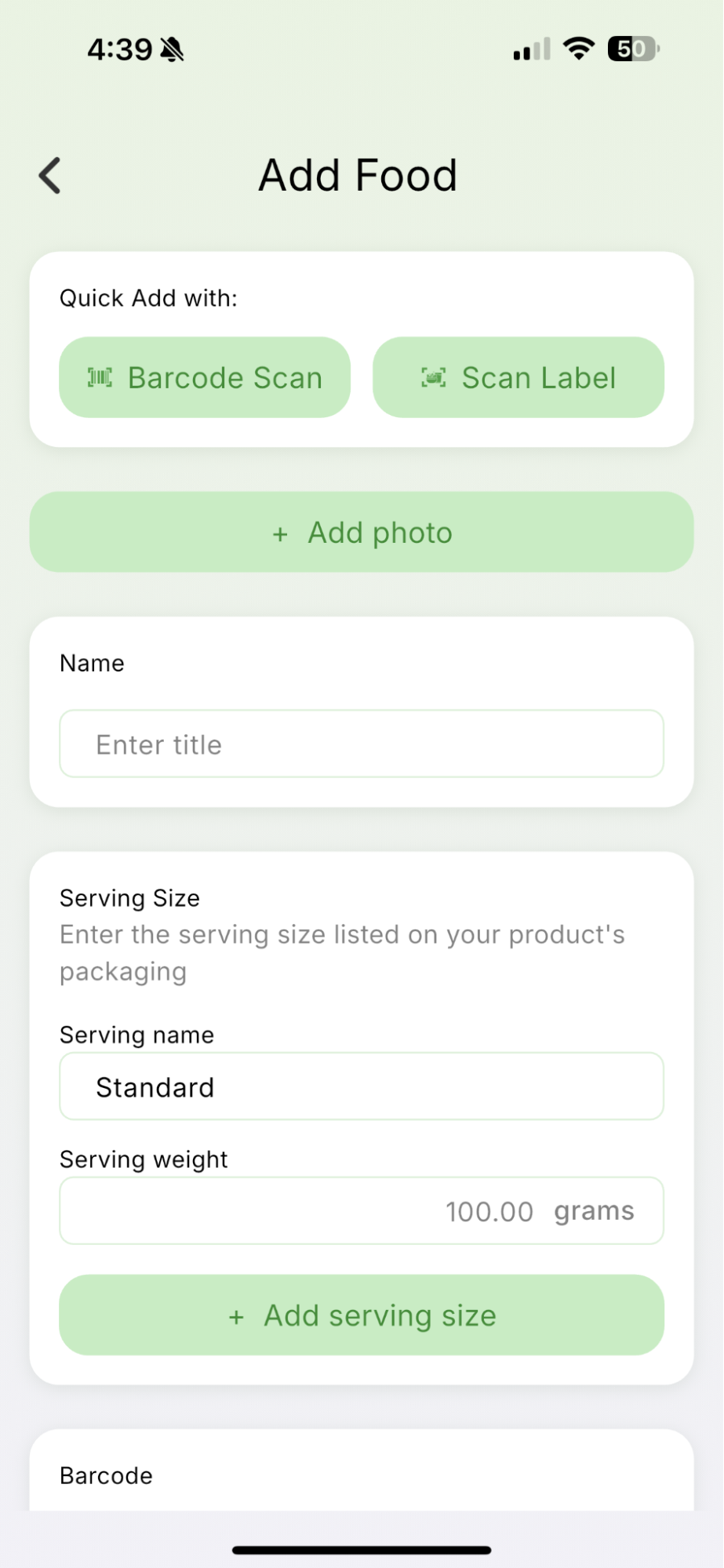
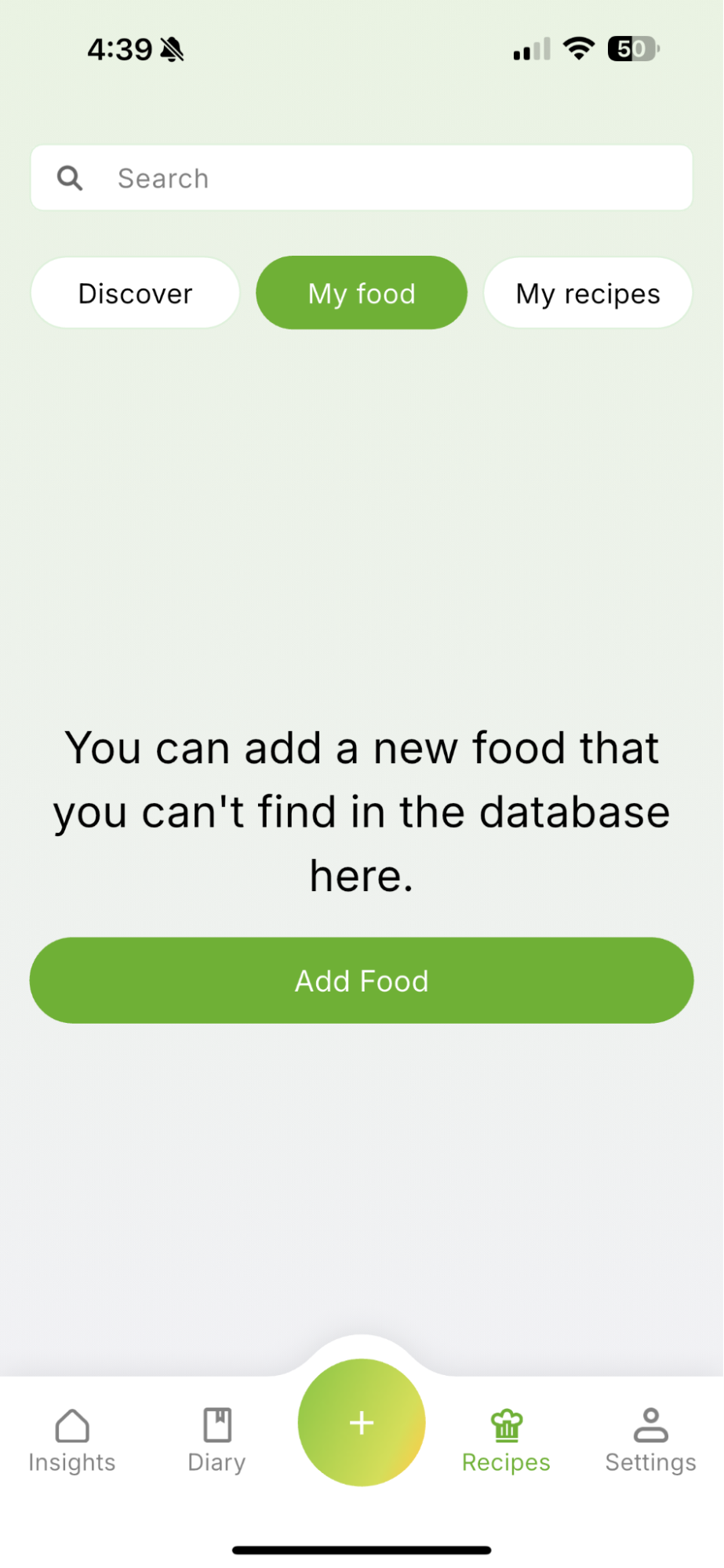
Step 1: Open My Food
Go to Recipes, select My Food, and tap Add Food.
Step 2: Add the Food’s Information
Enter the food’s name and serving information. You can also scan its nutrition label or barcode to capture the available nutritional values or enter them manually.
Step 3: Enter the Nutrition Facts
Add the information available on the product’s packaging, including:
- Serving size
- Calories
- Protein
- Carbohydrates
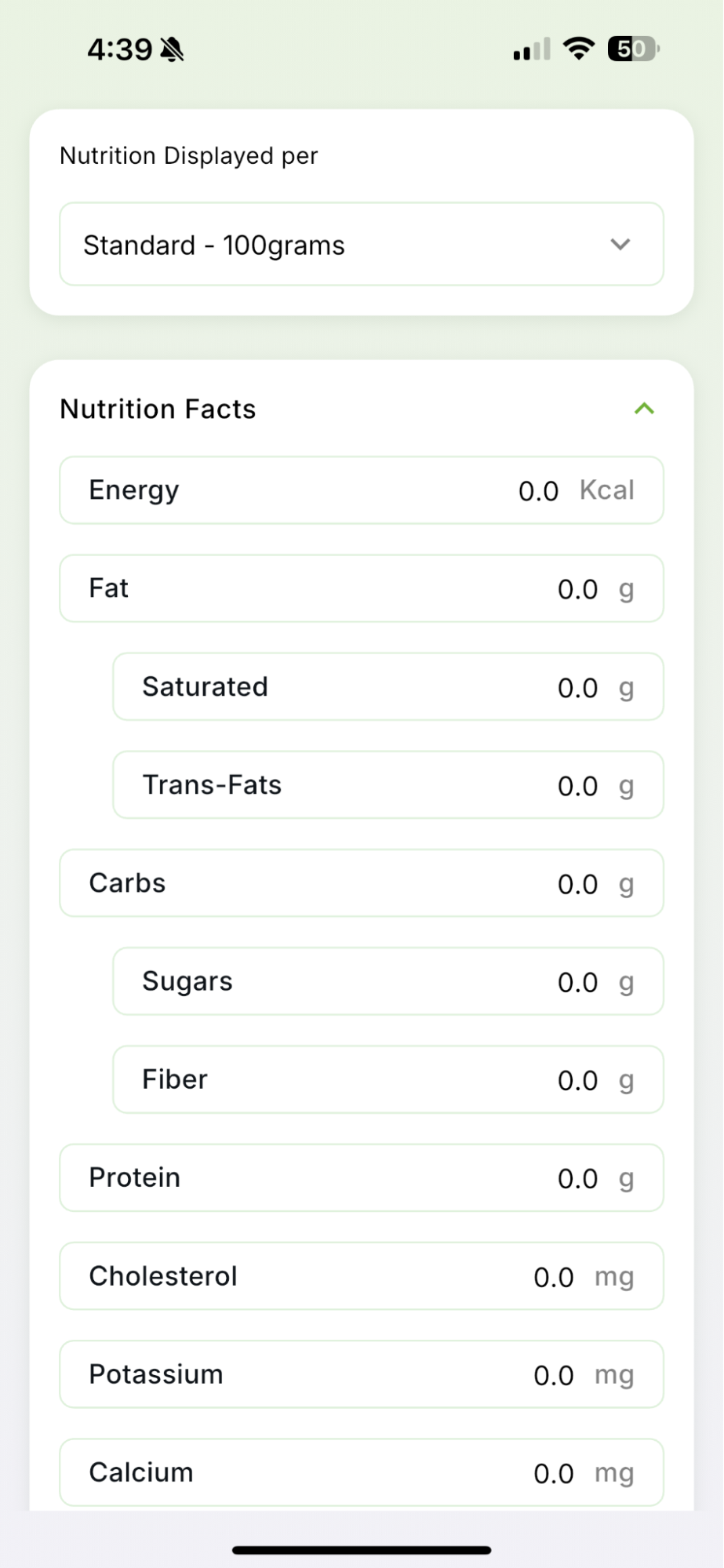
- Fat
- Any additional nutritional values provided
Make sure the values correspond to the serving size you entered.
Step 4: Save the Food
Review the information and tap Save. The custom food will appear under My Food, where you can quickly select and add it to your Diary in the future.
3. How to Create a Recipe
Once you have logged all the foods used in a meal, you can combine them into a recipe and save it for future use.
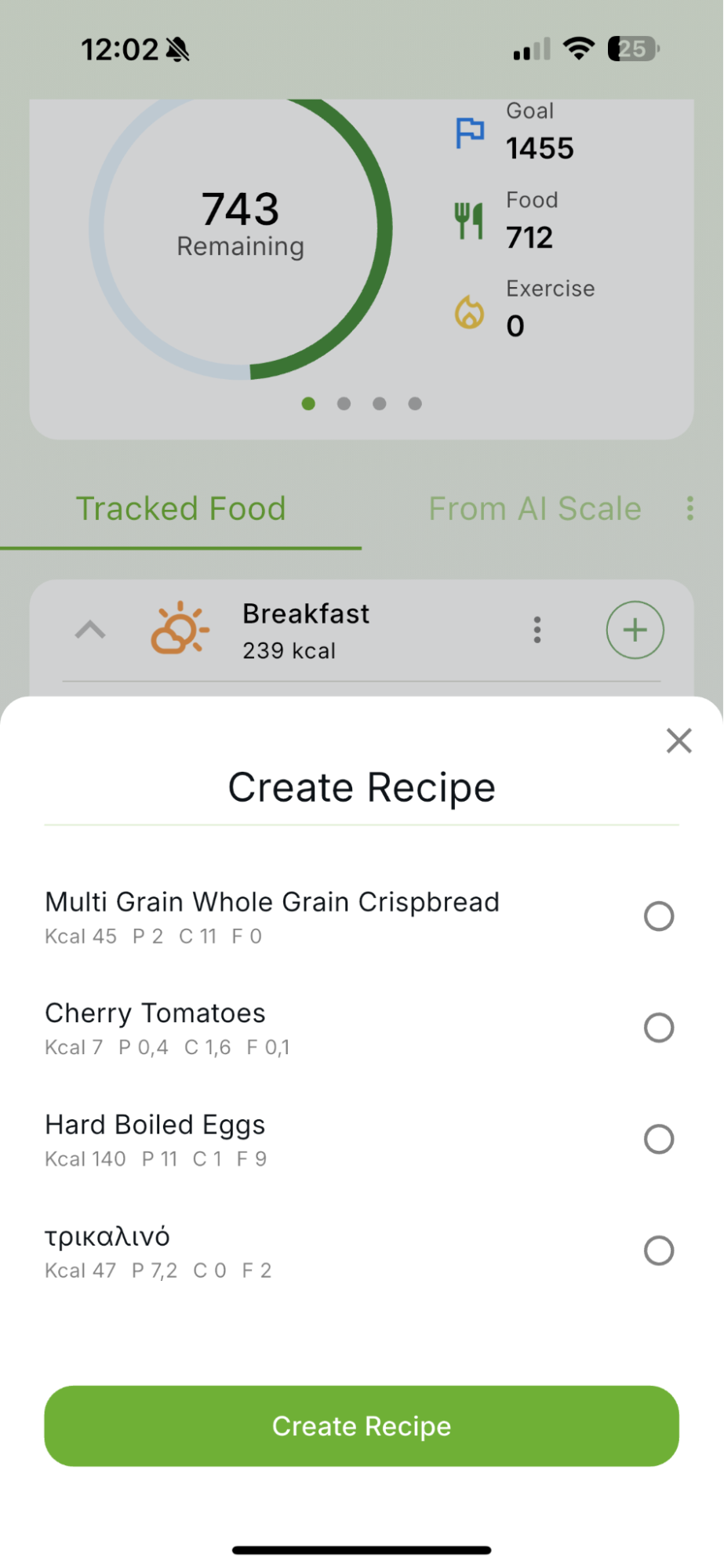
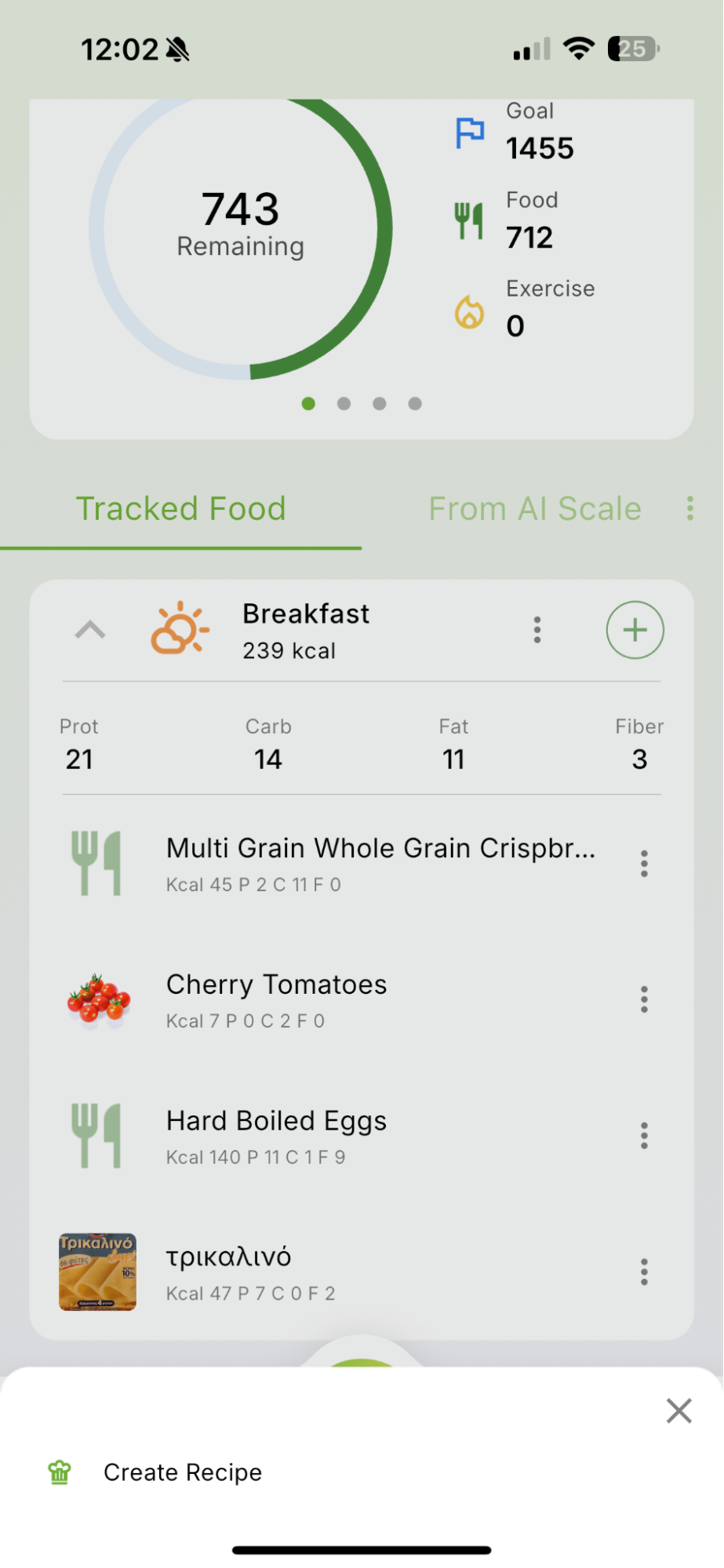
Step 1: Open the Meal Options
In your Diary, find the meal containing the foods you want to include in your recipe. Tap the three dots next to the meal heading to open the available options.
Step 2: Select Create Recipe Tap Create recipe and select the logged foods you want to use. These foods will automatically be added to the recipe as ingredients.
Step 3: Review the Ingredients Check the ingredient list and make sure all the correct foods and quantities are included. You can edit the ingredients or add additional ones if needed.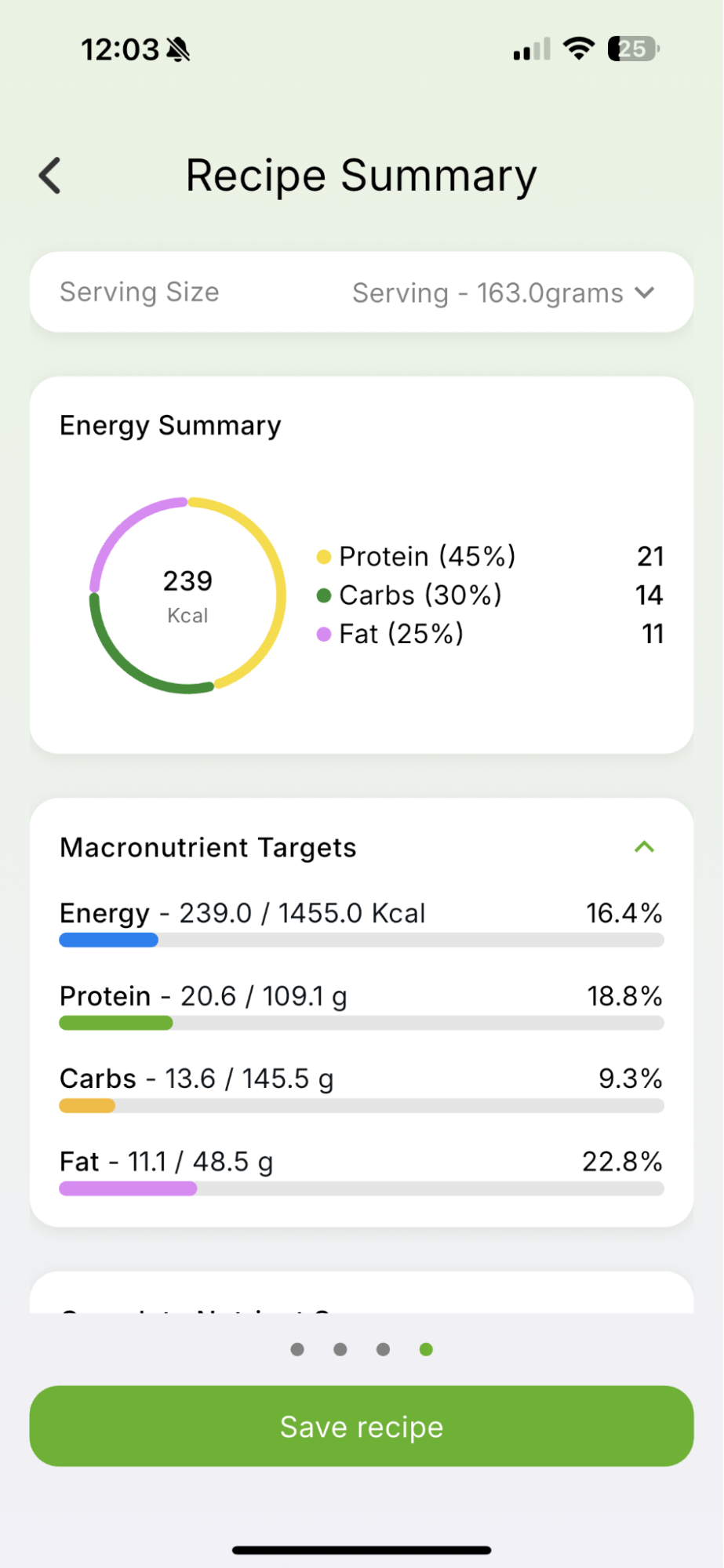
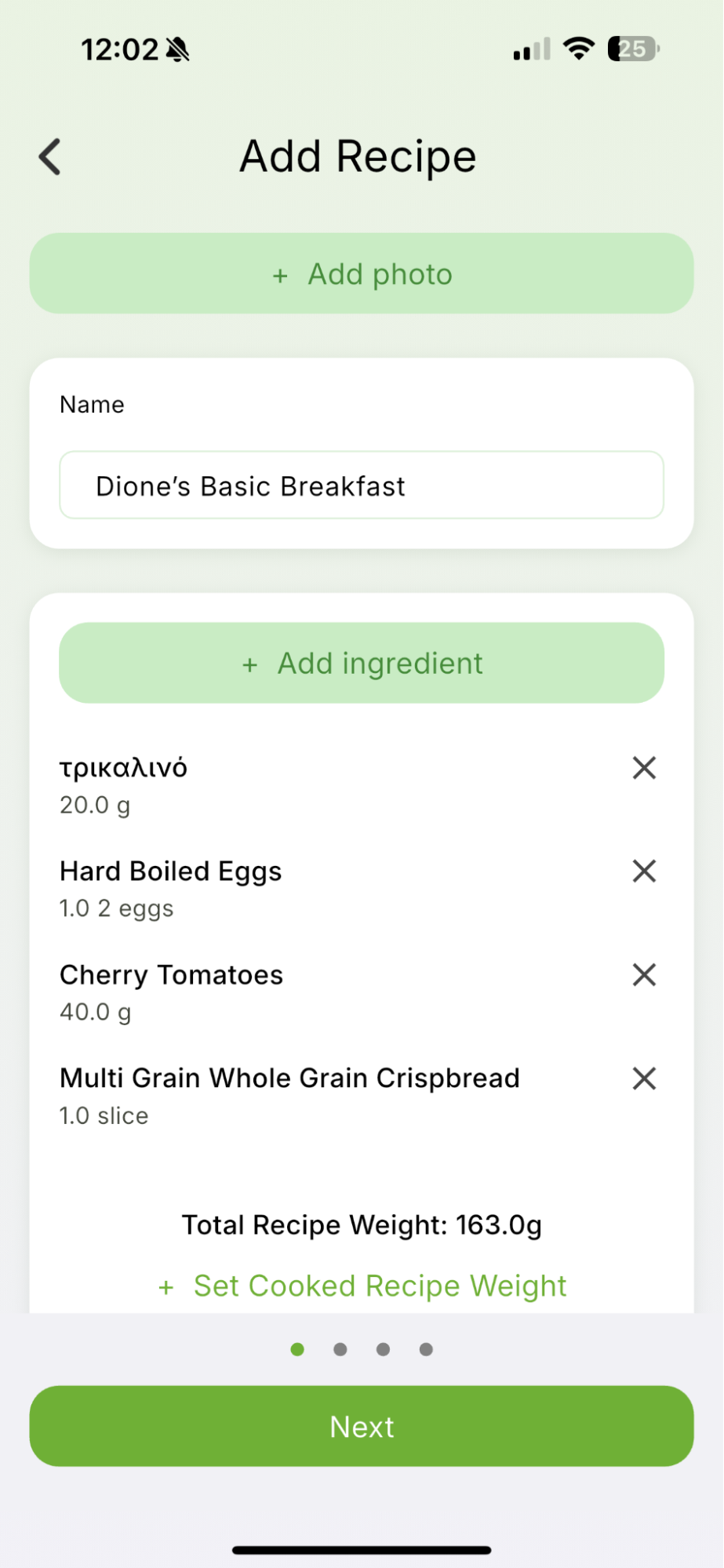
Step 4: Add the Recipe Details
Complete the recipe by adding:
- A recipe name
- The number of servings it makes
- Preparation or cooking instructions
Setting the correct number of servings allows Qalzy to calculate the calories and nutritional information for each serving.
Step 5: Review and Save the Recipe
Review the recipe’s ingredients, instructions, serving size, and nutritional information. When everything is correct, tap Save.
How to Record Exercise and Connect a Health App
Qalzy lets you record exercise manually or import activity data from a connected health app or fitness device.
1. Add exercise manually
Step 1: Open the Exercise section From your Diary, scroll down to Exercise and tap the + button.
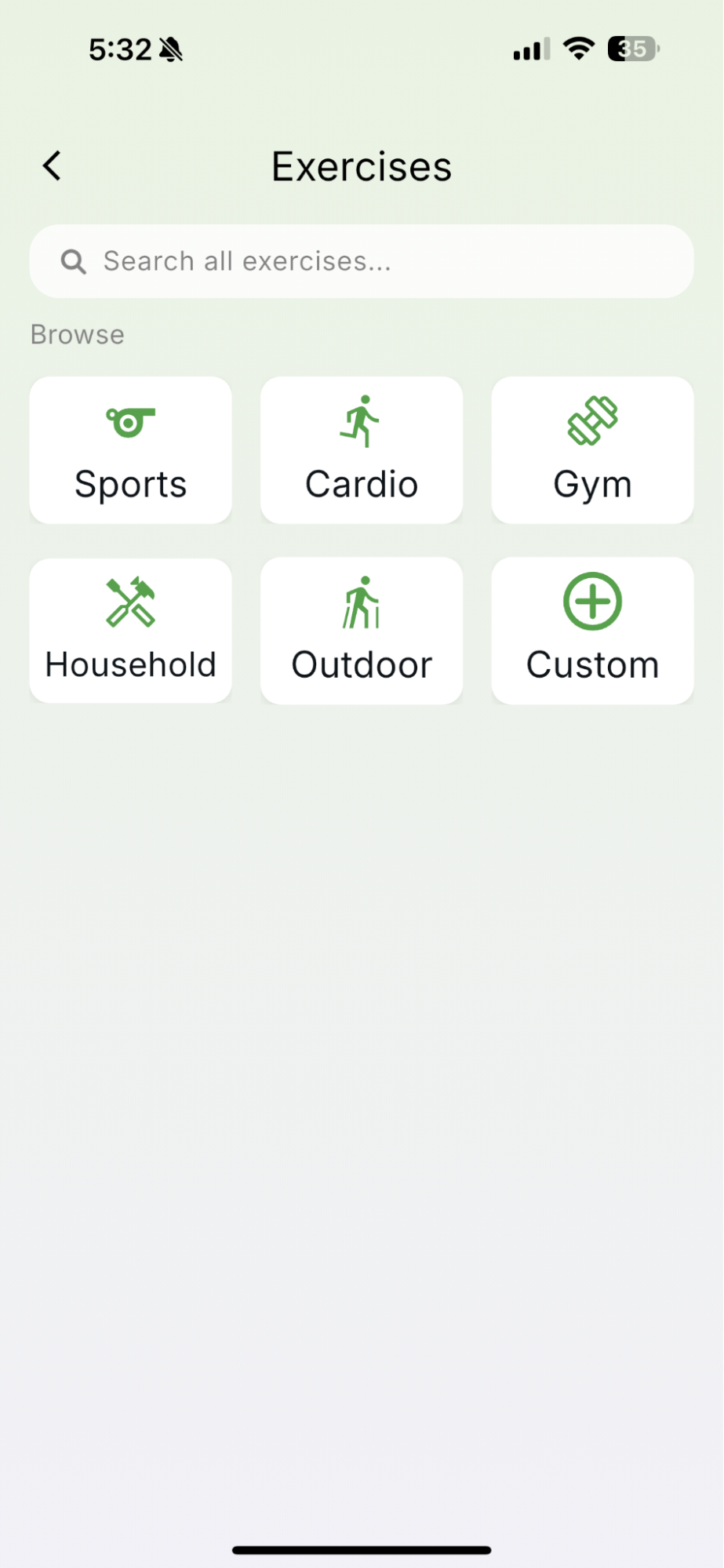
Step 2: Find your activity Search for an exercise or browse the available categories:
- Sports
- Cardio
- Gym
- Household
- Outdoor
- Custom
Select Custom if the activity you want to record is not listed.
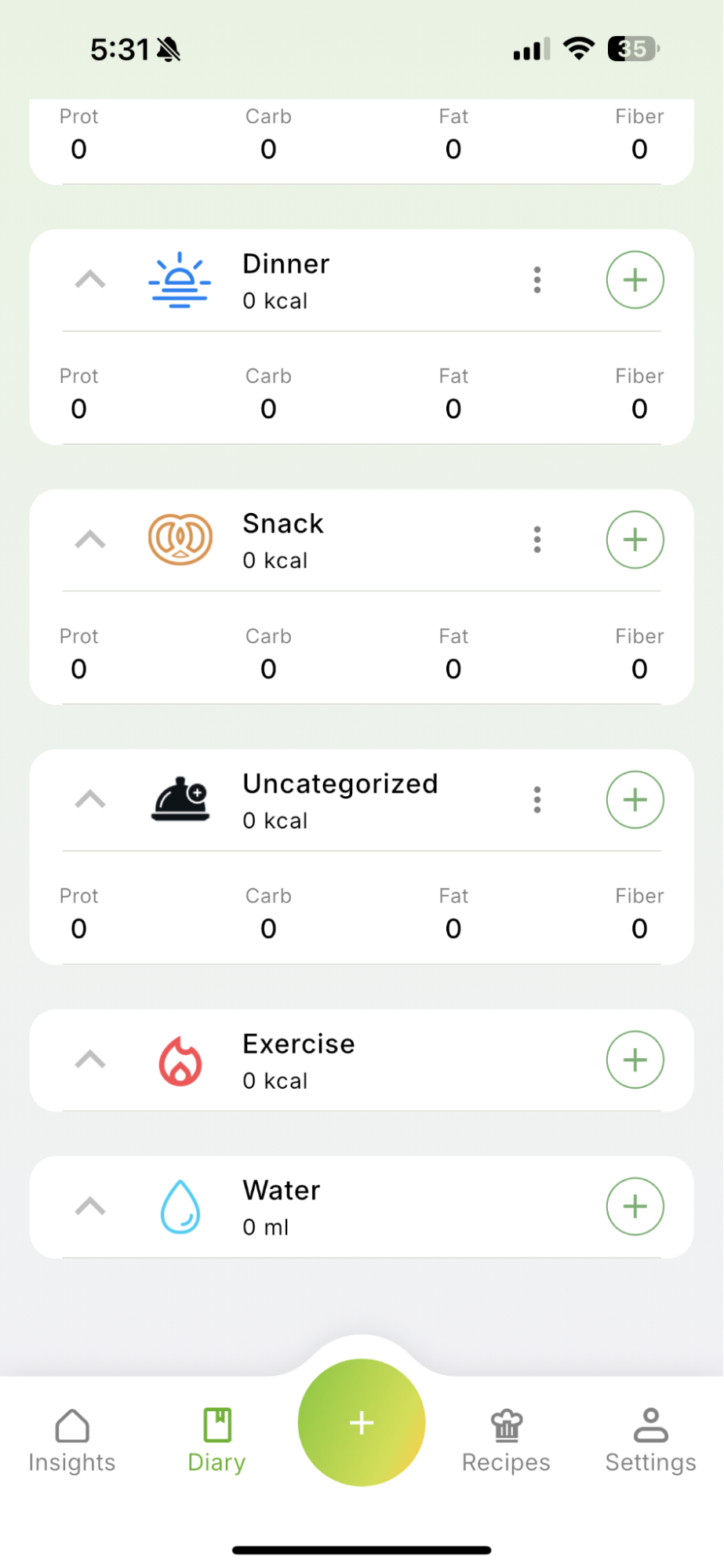
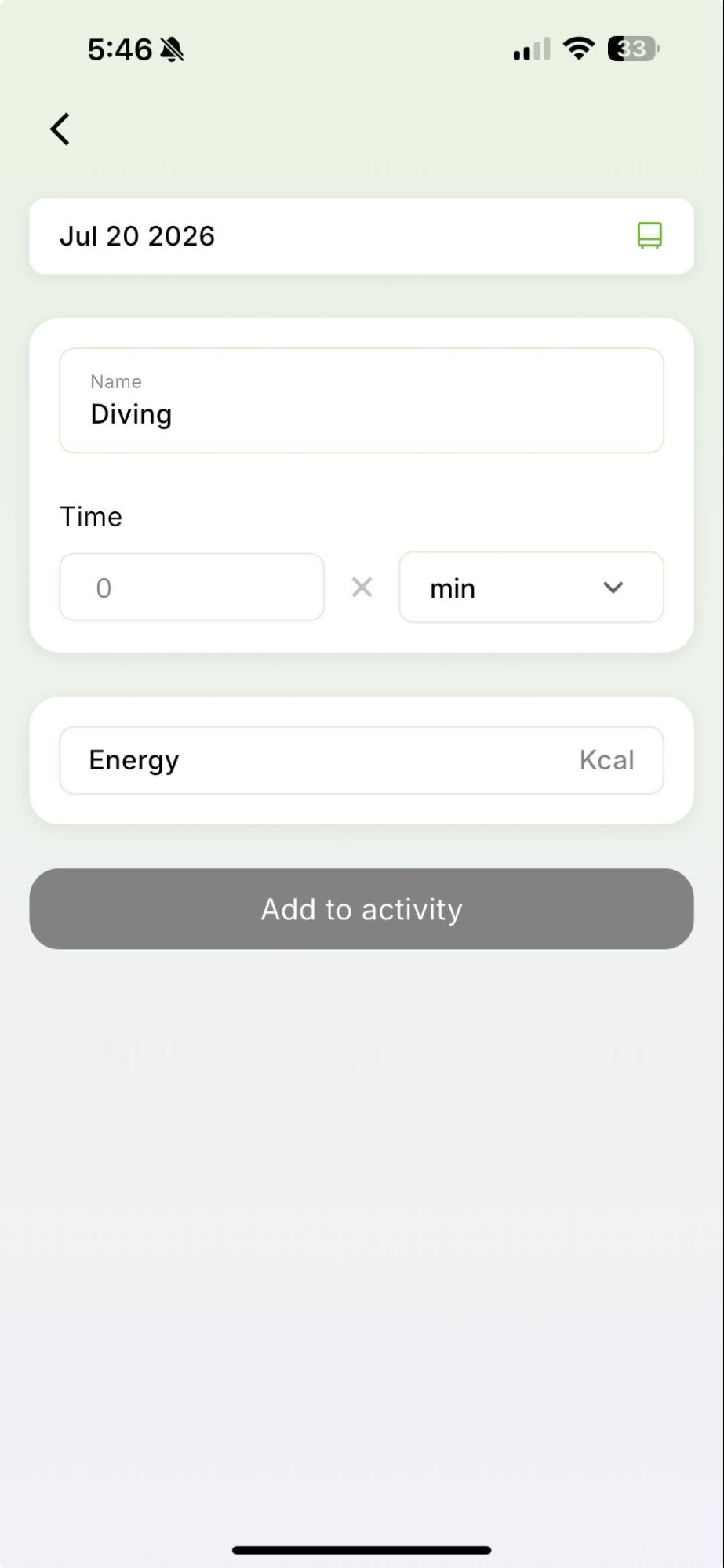
Step 3: Add the exercise details Select your activity, check the date, and enter the duration and calories burned. Then tap Add to activity.
Your exercise will appear in your Diary, and your daily calorie totals will update accordingly.
1. Connect a health app or fitness device
Connecting a supported app or device allows Qalzy to retrieve your activity data without requiring you to enter every exercise manually.
Step 1: Open Connect Apps & Devices
Go to Settings and select Connect Apps & Devices.
Step 2: Choose your app or device
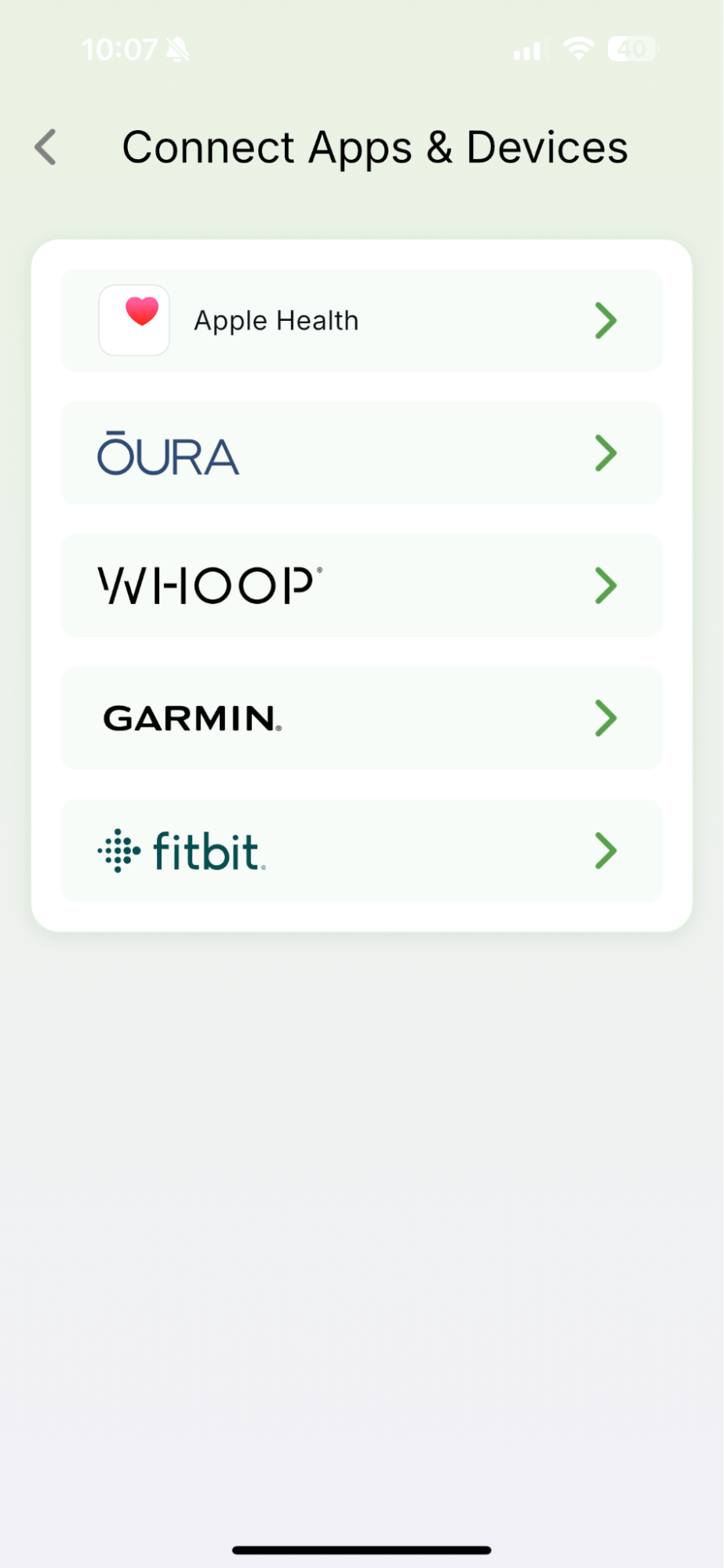
Select the service you want to connect to. Qalzy currently displays options for:
- Apple Health
- Oura
- WHOOP
- Garmin
- Fitbit
Follow the on-screen instructions to sign in and give Qalzy permission to access the relevant health and activity data.
Step 3: Let Qalzy update your activity
Once connected, activity data from the selected service can be added to Qalzy automatically. Your logged exercise and calories burned are then reflected in your daily totals, helping you keep your nutrition and activity data together.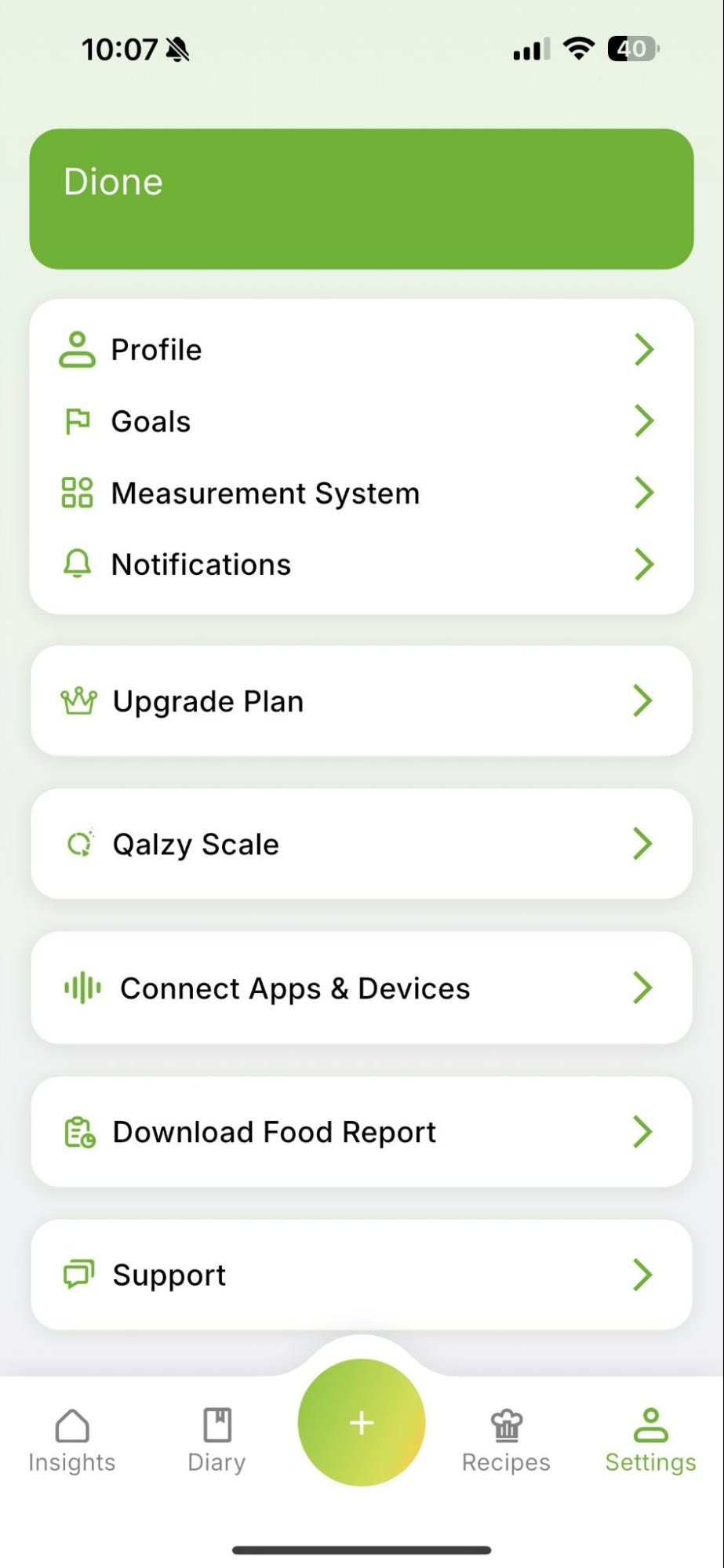
How to Use the Nutrition Advisor
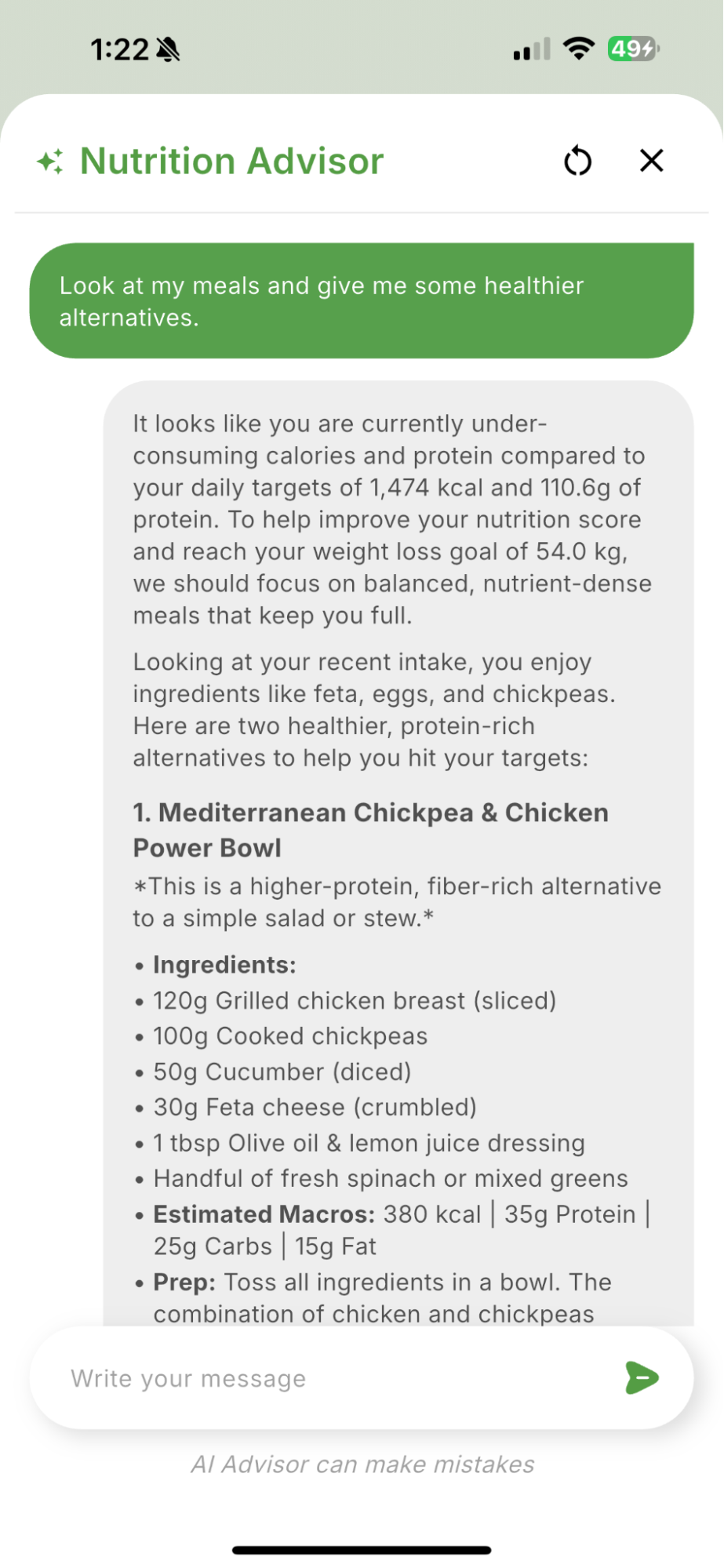
The Nutrition Advisor uses your logged meals, nutrition targets, and progress to provide personalized suggestions and answer questions about your diet.
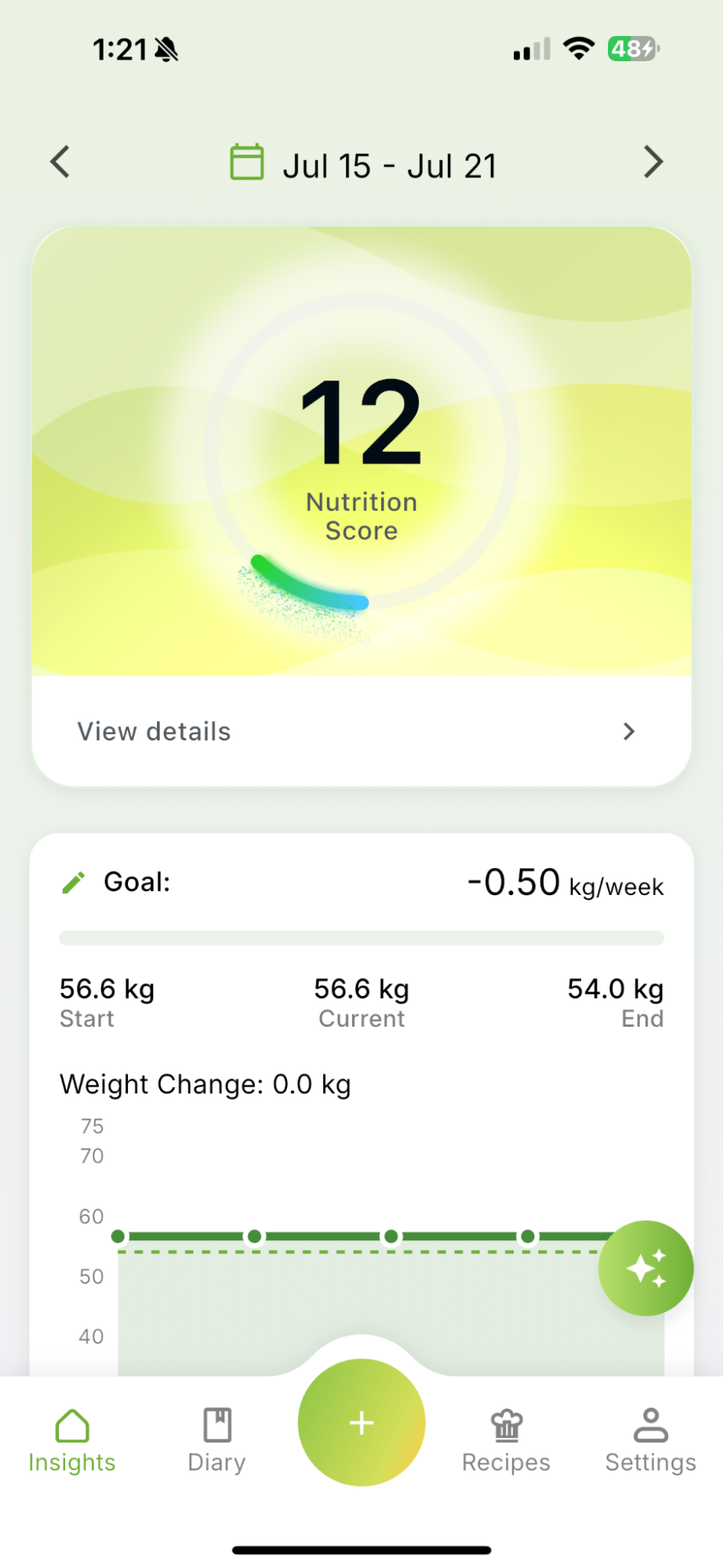
Step 1: Open the Nutrition Advisor
Go to Insights and tap the green sparkle icon on the right side of the screen.
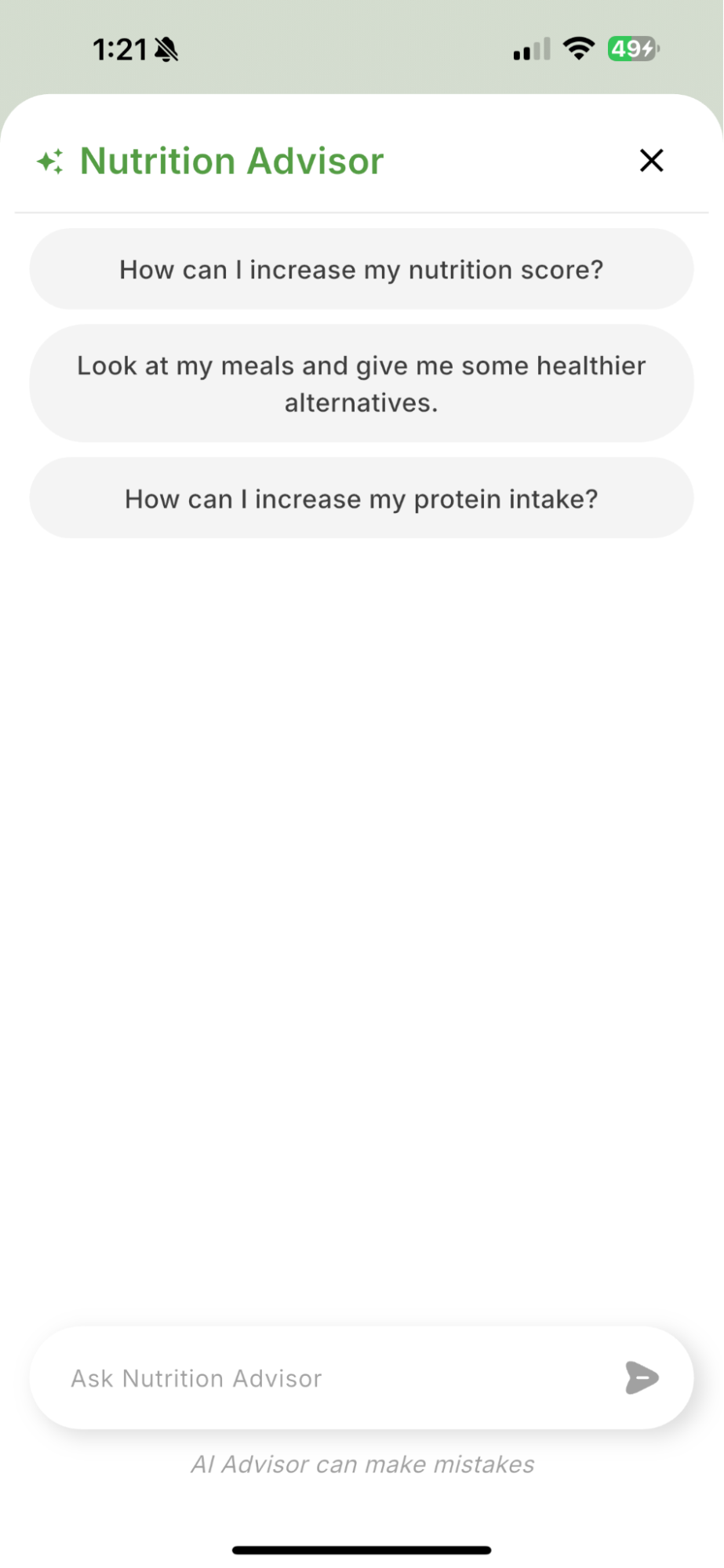
Step 2: Choose or Ask a Question
Select one of the suggested questions to get started, or type your own question in the message box. You can ask about your logged meals, nutrient intake, daily targets, or ways to make your meals more balanced.
For example:
- How can I increase my nutrition score?
- What could I change to increase my fibre intake?
- Suggest healthier alternatives to my recent meals.
Your Personalized Nutrition Guidance
The Nutrition Advisor reviews your Qalzy data and provides suggestions based on your recent intake and goals.
Keep in mind that the Nutrition Advisor can make mistakes and does not replace advice from a qualified healthcare professional, particularly if you have a medical condition or specific dietary requirements.
How to Download and Share Your Food Data
Download a report of your logged food data to save for your own records or share with a nutritionist or healthcare professional.
Step 1: Open the Food Report Go to Settings and select Download Food Report.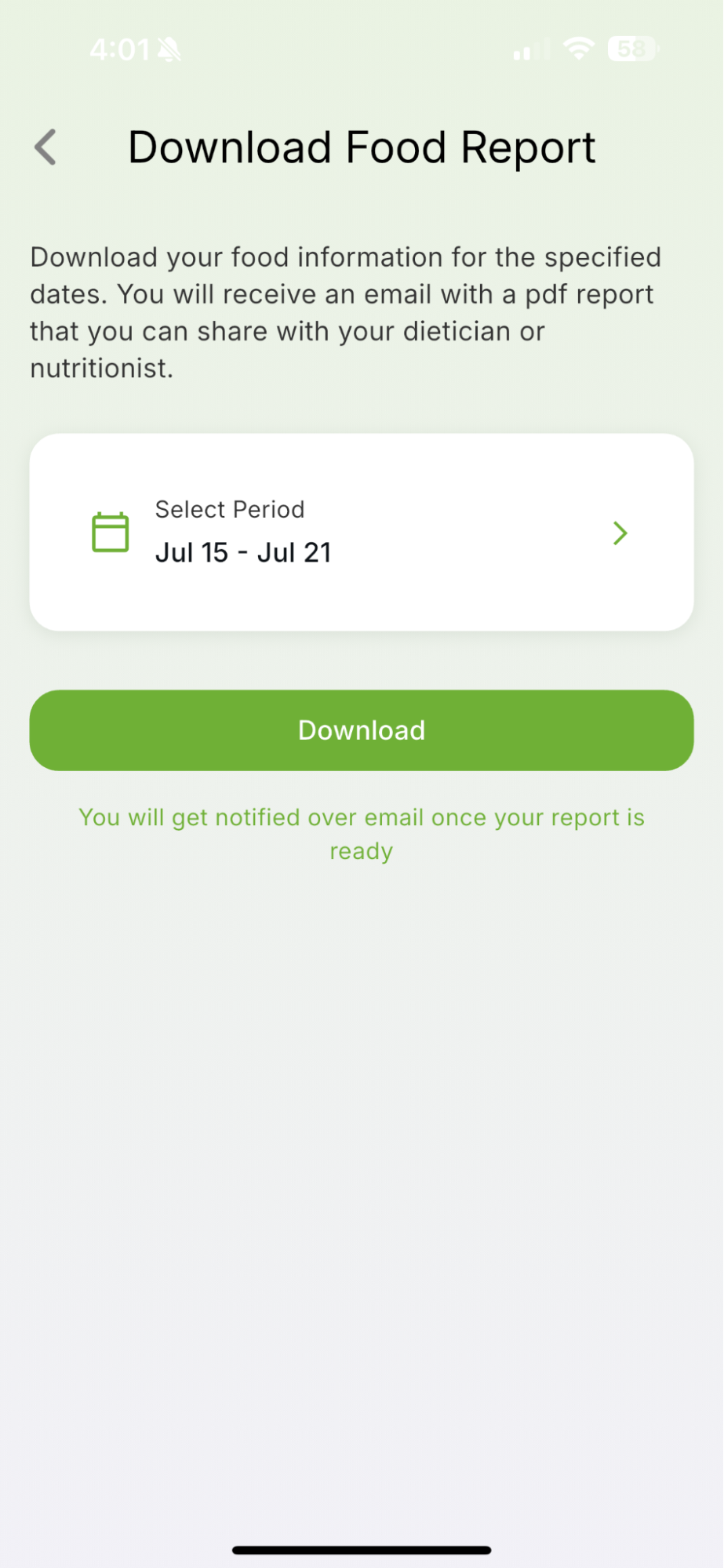
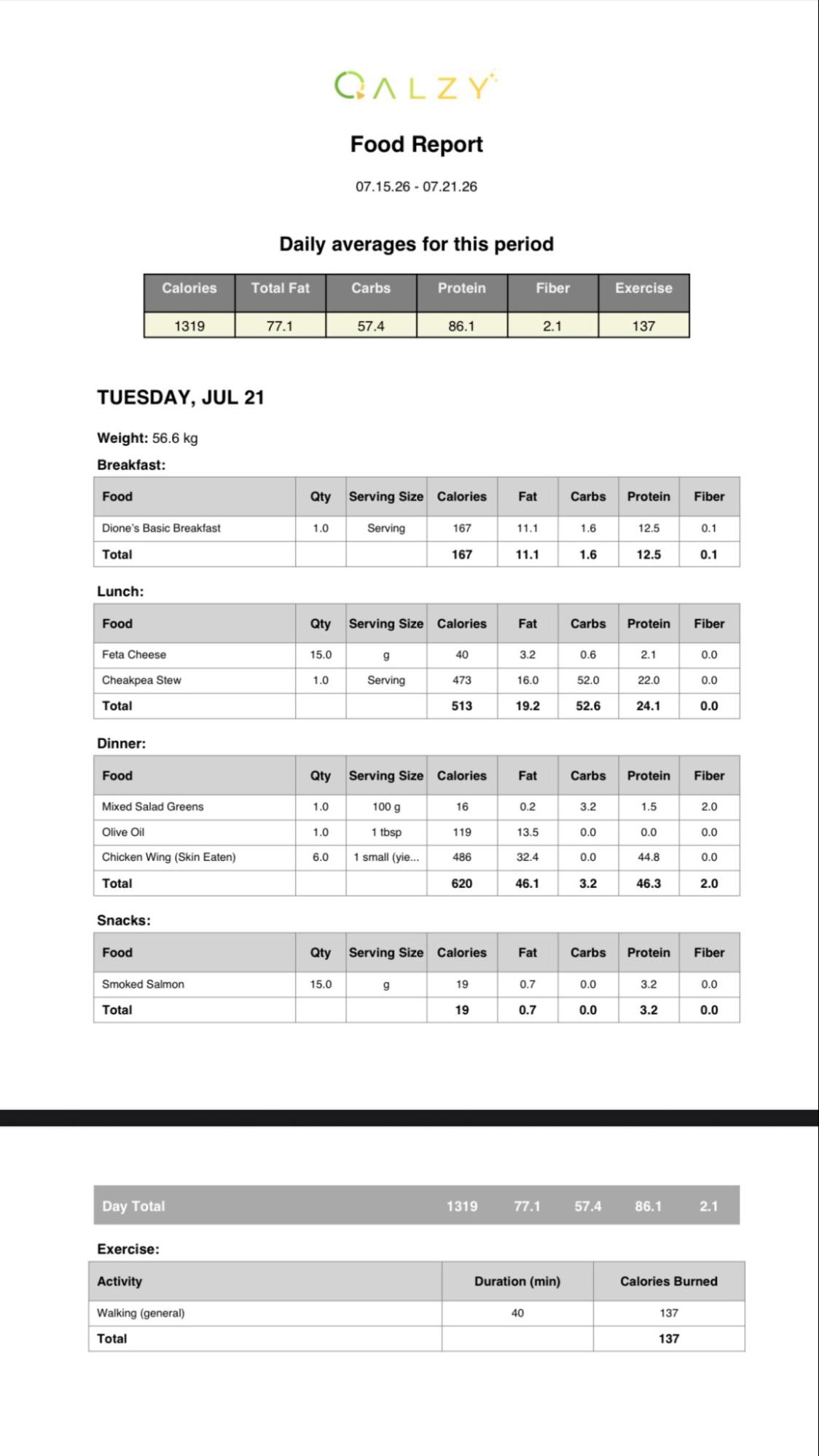
Step 2: Download the Report Follow the on-screen instructions to generate your food data report. Once it is ready, you’ll receive an email from Qalzy containing a link to access your report.
You can open the link to view your food-tracking data and share the report with a nutritionist or healthcare professional, helping them review your eating patterns and provide more informed guidance.
How to Display and Track Your Blood Glucose
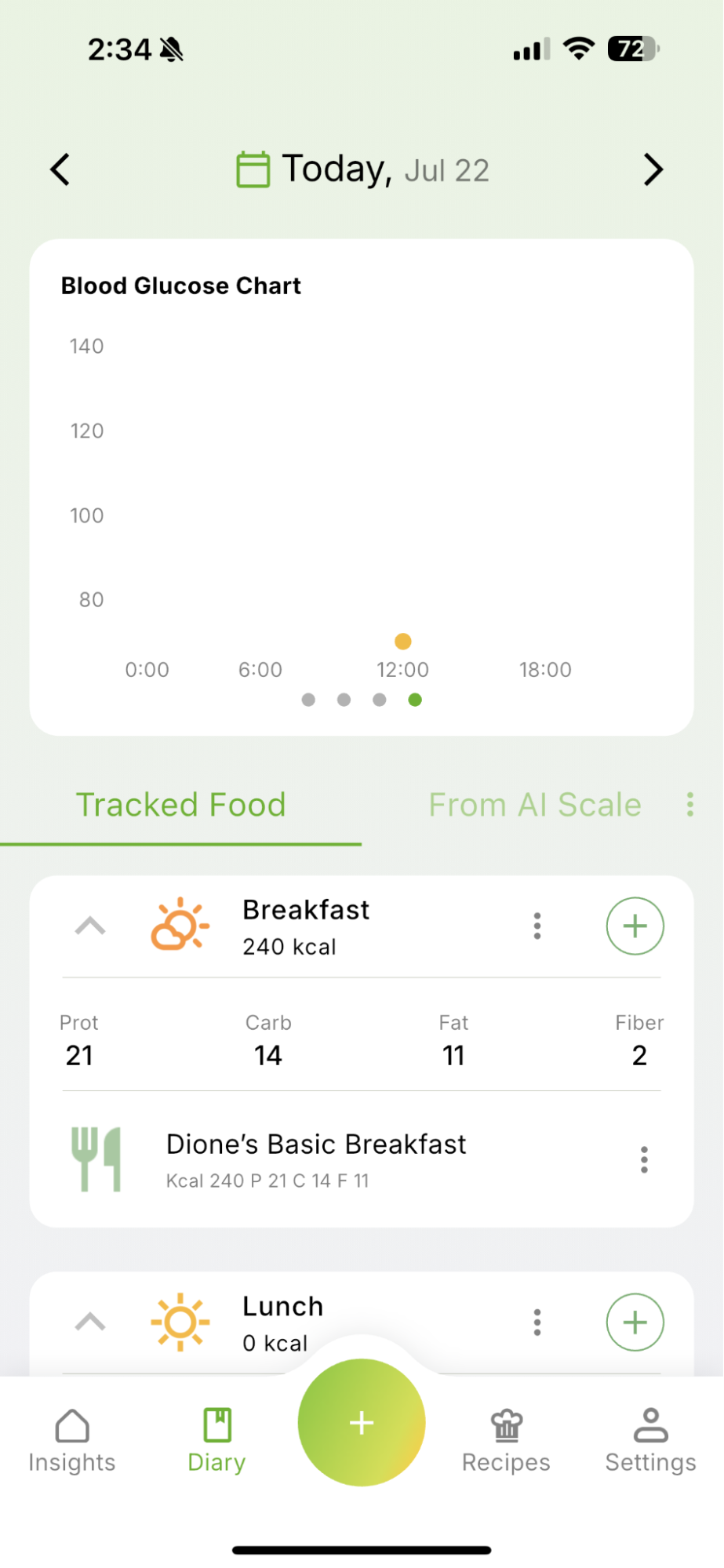
If you track your blood glucose with a connected app or device, you can display your glucose data alongside your food Diary to better understand how your levels change throughout the day.
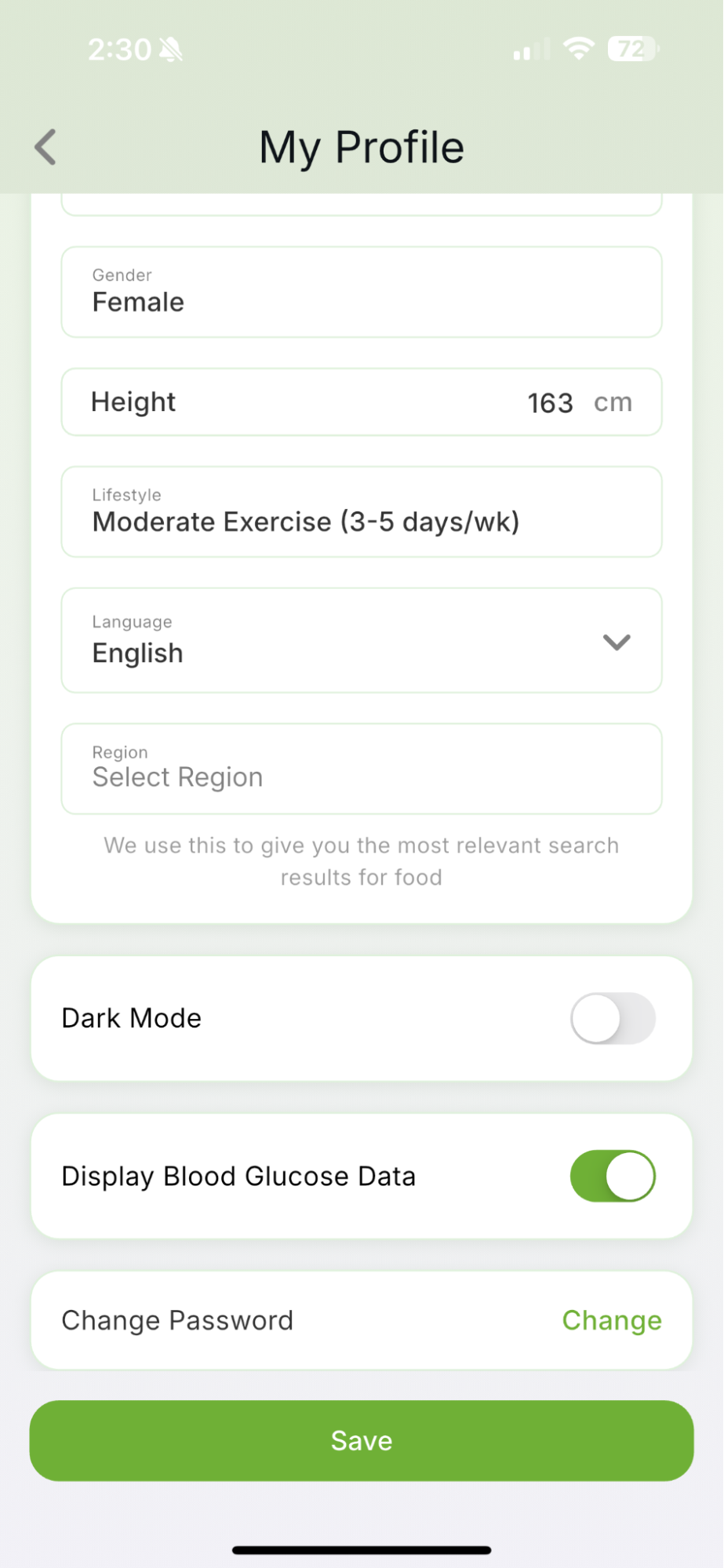
Step 1: Enable Blood Glucose Data
Go to Settings, select Profile, and switch on Display Blood Glucose Data. Tap Save to apply the change.
Step 2: View Your Blood Glucose Chart Open your Diary and swipe through the cards at the top until you reach the Blood Glucose Chart. The chart displays your recorded glucose levels throughout the selected day, allowing you to view them alongside the foods and meals you logged
How to Track your Water Intake
Keep track of how much water you drink throughout the day directly from your Diary.
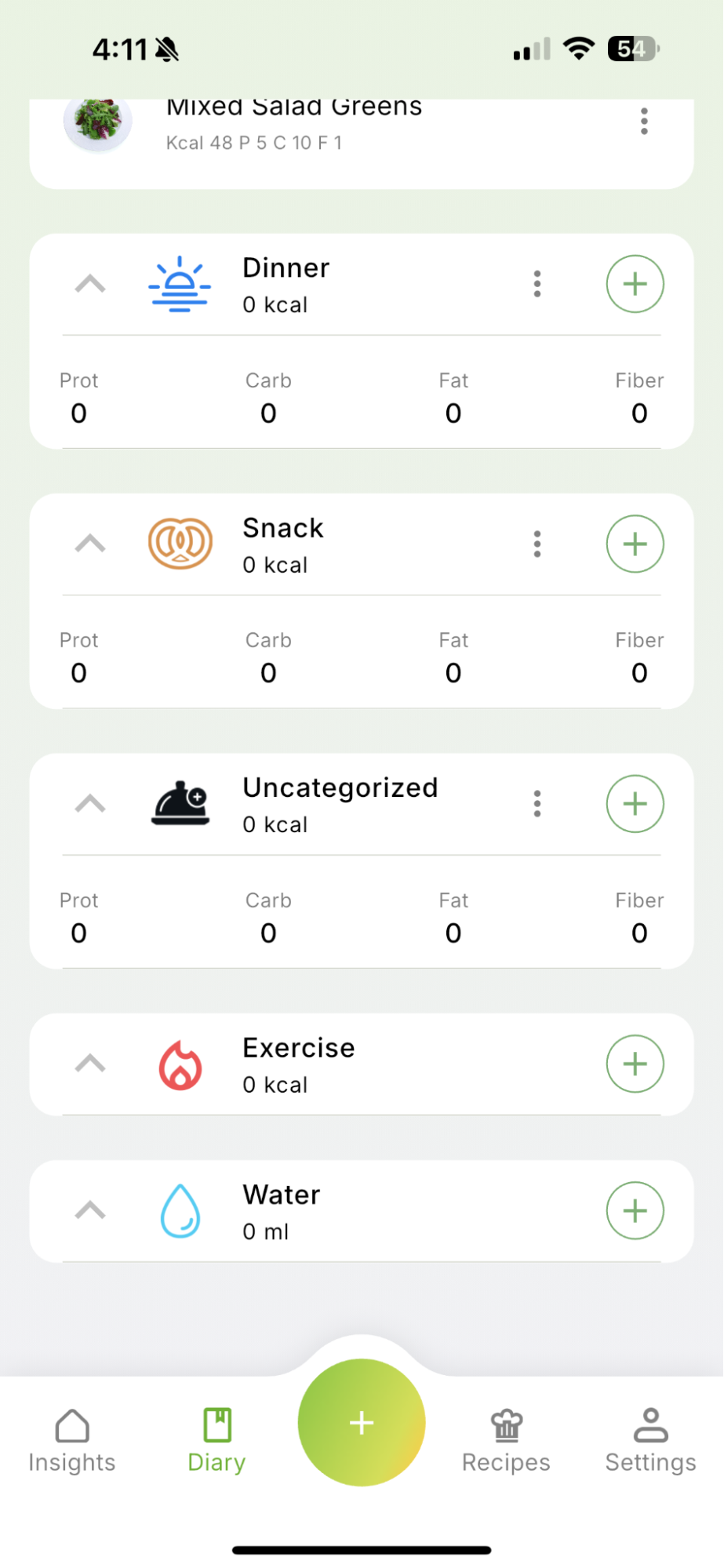
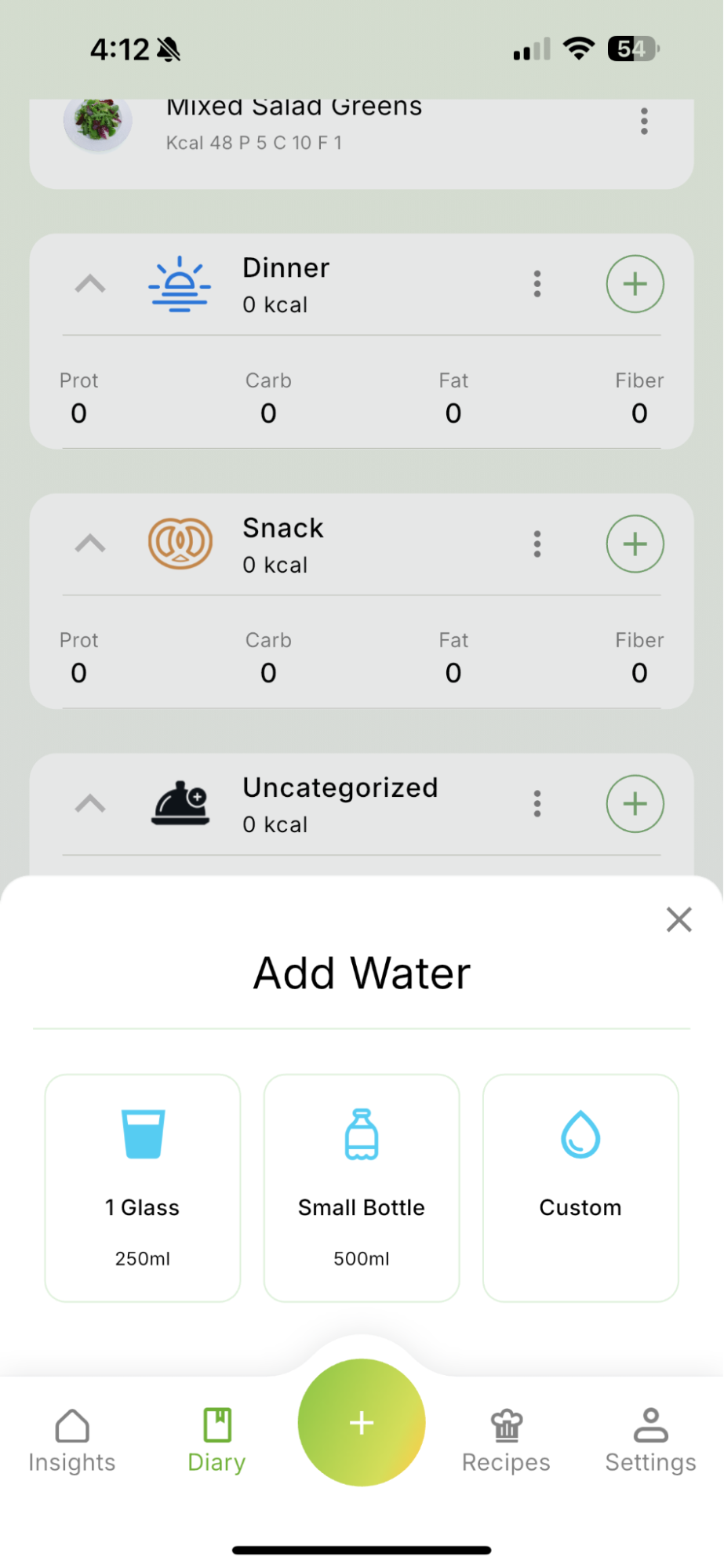
Step 1: Open the Water Section
Open your Diary, scroll down to Water, and tap the + button.
Step 2: Choose the Amount
Select one of the preset amounts:
- 1 Glass - 250 ml
- Small Bottle - 500 ml
- Custom - enter a different amount
Step 3: Log Your Water
Tap your chosen amount to add it to your Diary. Your total water intake will update automatically, helping you track your progress throughout the day.
How to Enable Dark Mode
Switch to Dark Mode for a darker app appearance that may feel more comfortable, particularly in low-light environments.
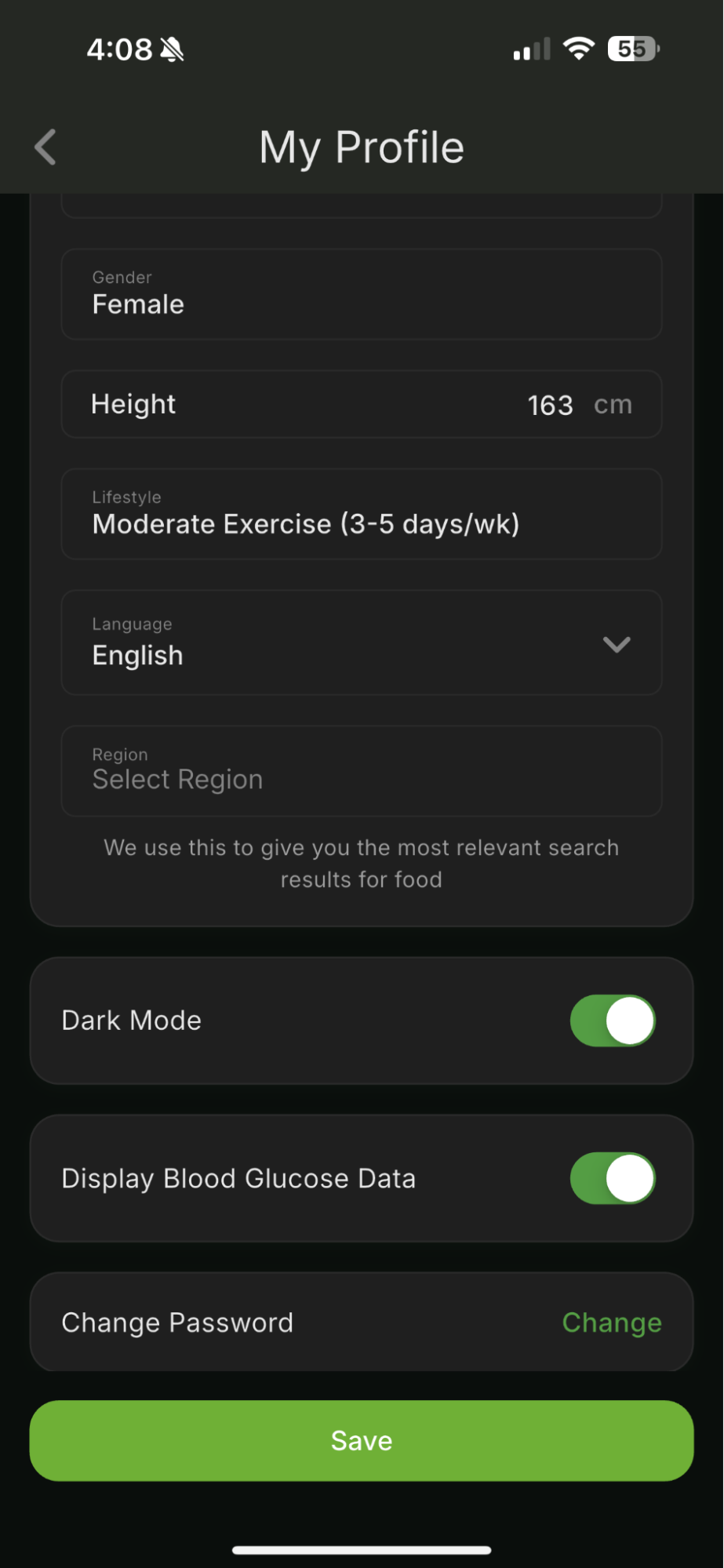
Step 1: Open Your Profile Settings
Go to Settings and select Profile.
Step 2: Enable Dark Mode
Scroll down to Dark Mode and turn on the toggle. Then tap Save to apply the change.
Qalzy’s interface will switch to its darker colour theme. You can return to the same setting and turn the toggle off whenever you want to switch back to Light Mode.
Start Tracking with Confidence
You’re now ready to make Qalzy part of your daily routine. Start by setting your goals and logging your first meal, then explore additional features - such as recipes, water and exercise tracking, nutrition insights, and connected health data - as you need them.
The more consistently you record your food and activity, the clearer your nutrition patterns become. Instead of relying on guesswork, you can see how your daily choices contribute to your calorie, macronutrient, and overall nutrition goals.
Visit qalzy.com to learn more, or download the Qalzy app to set up your personalized plan and start tracking your first meal today.